Recently I had to view my Android phone’s screen on my PC as I broke its screen at the most unfortunate time. It was a bit difficult to find the right solution, but I managed to find the perfect one that didn’t require installing anything on my phone (which I couldn’t use). If you are stuck in a similar situation or need to view Android screen on PC for any other reason, then I have the simplest solution.
Today, I’ll show you how you can view your Android screen on your PC using a data cable and a software on your PC.
Introducing Vysor
For this purpose, we will be using Vysor. It’s a desktop app that works on almost all platforms and lets you view your Android phone screen on your PC when it’s connected via a USB cable. The app free version is ad-supported and lets you screencast Android phone to PC and control it. Although there is a paid version as well that adds a bunch of interesting (but not compulsory) features, such as wireless connection and better mirroring quality.
Using Vysor to view Android screen on PC
You first need to install Vysor on your PC, its available for Windows, Mac OS X, Linux, and even Chrome. And you must have USB debugging mode enabled on your Android phone to make this work. If your phone’s screen is broken and USB debugging isn’t enabled, then you are out of options. However, enabling USB debugging mode is easy if you can use your phone. Just follow the instructions in this article and you’ll have it enabled in no time.
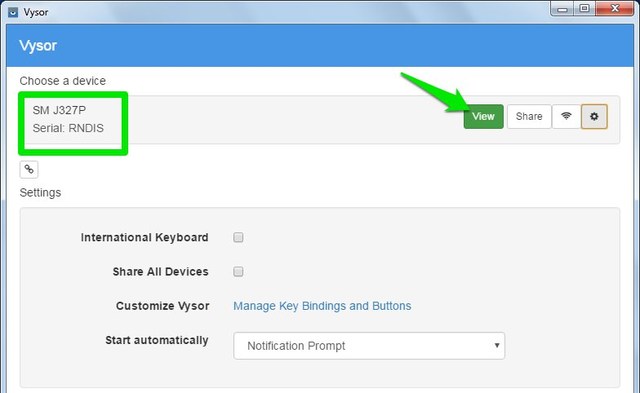
Now connect your phone with your PC using a data cable and launch the Vysor app. You should see your phone listed under “Choose a device” heading. Click on the “View” button and Vysor will try to connect to your phone. You may get a prompt on your phone to allow Vysor to connect to it, just tap “Yes” to continue. Once the connection is made, you can view and control your Android phone using your PC.
Note: If you get “Assertion error” while connecting, just click on “Ignore” and your phone will connect smoothly.
You can use your mouse cursor as your finger to tap and navigate the phone and your PC keyboard can be used to enter text. While connected, your phone is also fully usable and any interaction there will show on the desktop screen.

In my experience, there was little to no latency while navigating the phone and using apps. Although, the screen may jitter a little when you move to a different app.
Ending words
I found Vysor to be very convenient for viewing Android screen on PC. Even though many of its features are locked behind a paywall, but the free version is enough to view and control your Android screen (which we require). However, you’ll have to bear with an ad every 30minutes while using Vysor free version, but the ads aren’t very intrusive and come with a prior warning.
If you know any other convenient way to view Android screen on PC, do share with us in the comments below.
The post This is the Simplest Way To View Android Screen on PC appeared first on Gtricks.

via Gtricks https://ift.tt/2DWnSlt
 Mozilla Firefox is a fast, light and tidy open source web browser. At its public launch in 2004 Mozilla Firefox was the first browser to challenge Microsoft Internet Explorer’s dominance. Since then, Mozilla Firefox has consistently featured in the top 3 most popular browsers globally. The key features that have made Mozilla Firefox so popular are ...


 TeamViewer is the All-In-One Solution for Remote Access and Support over the Internet. TeamViewer connects to any PC or server around the world within a few seconds. You can remote control your partner's PC as if you were sitting right in front of it. Features: control computers remotely via the internet, record your session and covert it to...


 Protecting yourselves and your data online is a big topic at the moment, news of data breaches and misuse are becoming more and more common. One of the simplest and most effective ways of protecting yourself is to use a virtual private network, or VPN. Private Internet Access is top of its game when it comes to providing VPN access. Private Inte...


 CleanSpace is powerful professional level software designed to completely rid your computer of all your electronic digital garbage and protect your online privacy. "Improving computer performance is one of the primary goals of our program," say its creators. Having used the professional version for the last month or so, we have no reason to doubt...


 BWMeter is a powerful bandwidth meter, which encompasses a monitor, traffic controller and a firewall to display, measure and control all traffic to/from your computer or on your network. BWMeter has an edge on other apps which provide a similar service, in that is is able to analyze data packets; where they come from, where they go, and whi...


 EarthView is a dynamic desktop wallpaper and screen saver application, which displays beautiful views of the earth with daylight and night shadows. It produces colorful, high quality, high resolution images for every screen resolution, even beyond 2560x1600. There are numerous options that allow total customization of all view parameters. It...


 Lines Code Editor was created to be a free, fast and simple source code editor for Microsoft Windows. Seen by its creators at CreatixBih as a great Notepad replacement editor, the software boasts many features and is pretty easy to use. Users will notice a quick and effective start-up and workflow, even on older machines. It also has an integrat...

