You are the owner of every file that you create or upload in your Google Drive account. You may not know but “owner” is an exclusive privilege that can’t be concurrently shared with anyone and offers exclusive rights, such as the ability to permanently delete a file.
Although ownership can’t be shared with anyone else, but you can still transfer it. For example, if you want someone else to manage a file, then you may transfer ownership and let them take full control. If you are looking to change ownership of a Google Drive file, then keep reading and I’ll show you how.
Change ownership in Google Drive
File ownership can be changed from the sharing option of every file. You can access it from the “Share” button while the file is open or from the Google Drive homepage. For demonstration, I am going to show you how to do it from the Google Drive homepage.
Note: Before you transfer ownership, you should understand that once ownership is transferred you won’t be able to take it back yourself. You also can’t delete the file, and the new owner can restrict or remove your access whenever they like.
You must share the file with the new owner first before transferring ownership. There is no need to go through these steps if the file is already shared with the new owner. Here’s how to do it:
1. First, log in and open up Google Drive homepage.
2. Now right-click on the file that you would like to transfer ownership of and select “Share”.

3. Here enter the email address of the new owner and click on “Send” to share the file.
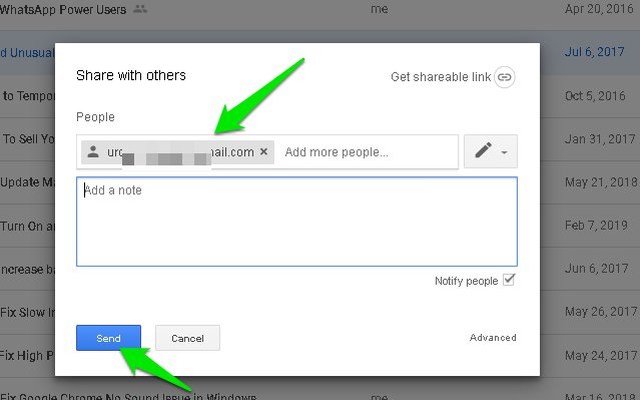
This will share the file with the new owner and they will be notified. However, they don’t need to open the file or accept anything, you can directly transfer ownership right after sharing. Here’s how:
1. Open up sharing options again by right-clicking the file and selecting “Share” from the menu.
2. Click on the “Advanced” button at the bottom-right corner.

3. Now click on the down arrow next to the name of the new owner and select “Is owner” from it.
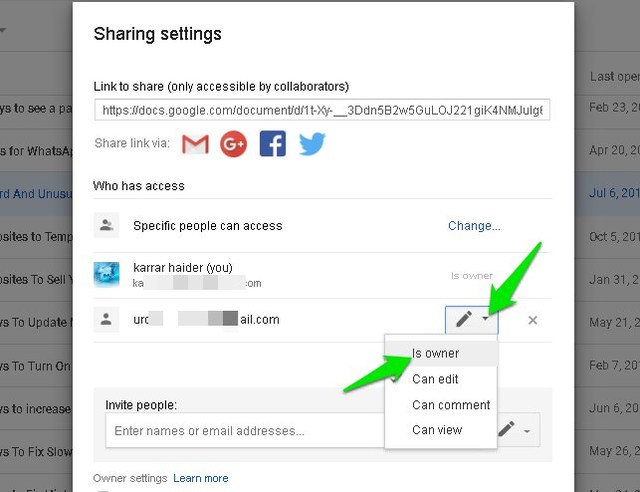
4. You must click on “Save changes” button at the bottom left corner to let the new changes take effect.

This will change the owner of the file, and you can still edit the file as long as the new owner doesn’t remove the access.
Note: You can repeat the same steps above to change ownership of a folder inside Google Drive. This can be very helpful if you need to change ownership of a large number of files.
Ending thoughts
I should mention that you can also select multiple files (hold Ctrl key and click each file) and follow the provided instructions to change ownership of multiple files. However, be very careful while changing ownership as you can’t revert these changes and the new owner gets full control over the files.
If you have any questions, shot away in the comments below.
The post How To Change the File Owner in Google Drive appeared first on Gtricks.


via Gtricks https://ift.tt/2XPVZ4q

 AVG AntiVirus FREE is AVG’s brand new product for ensuring your safety and security online. It is powerful, feature rich, and has a newly designed, fresh looking interface. AVG AntiVirus FREE is once-again a powerhouse of an antivirus. This essential security suite will protect your computer against viruses, worms, trojans, root-kits, and ot...


 The Hola extension for Chrome is an ad-free VPN proxy service, which gives you a faster and more open Internet. With Hola installed you can access websites that are blocked or censored in your country. The Hola browser extension helps you become invisible whilst browsing the web and also provides you with access to restricted resources, Hola can...


 AdBlock is a really useful ad blocking extension for Google's Chrome browser. It helps to block any annoying ads from interrupting your web browsing experience. AdBlock is a very powerful tool that blocks almost every ad you can think of, including pre-video ads on YouTube. When AdBlock is running and blocking ads, you will see the AdBlock logo glo...


 IObit Malware Fighter is a powerful, advanced malware & spyware removal utility that detects, removes the deepest infections, and protects your PC from various potential spyware, adware, trojans, keyloggers, bots, worms, and hijackers, in real time. The app utilises the world-leading Bitdefender antivirus engine, IObit Anti-malware engine, a...

