Read the full article at AskVG.com

via AskVG https://ift.tt/2YJt3h7


If you are listing things in Google Docs or maybe creating a checklist, it’s very intuitive to sort it alphabetically to make it easier for readers to skim through it. Unfortunately, Google Docs doesn’t come with a built-in feature to sort content alphabetically. However, you can get a third-party add-on that can alphabetize in Google Docs automatically.
In today’s post, I am going to share one of my favorite add-ons for Google Docs that lets you sort alphabetically in Google Docs.
There are a bunch of add-ons available for Google Docs to create an alphabetized list in Google Docs. However, I am going to use the Doc Tools add-on. This add-on actually offers a bunch of tools like managing alphabet case or converting numbers to alphabets and vice versa. However, it also lets you sort alphabetically in both ascending and descending order. Just install the add-on from the above link and follow the below instructions:
To alphabetize the list, you need to make sure each item is listed on a separate paragraph or listed using bullet points or numbers. You can press the Enter key to move to the next paragraph. It doesn’t matter how long is the content in each line, but it must be separated using the Enter key.

Now highlight the content you want to sort using the left mouse click. Afterward, click on “Add-ons” in the top menu and move to “Doc Tools” and then click on “Sort the selection ascending”.
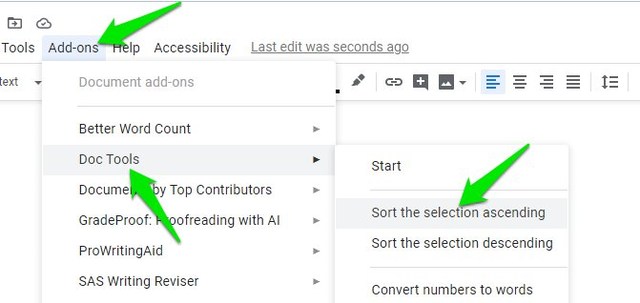
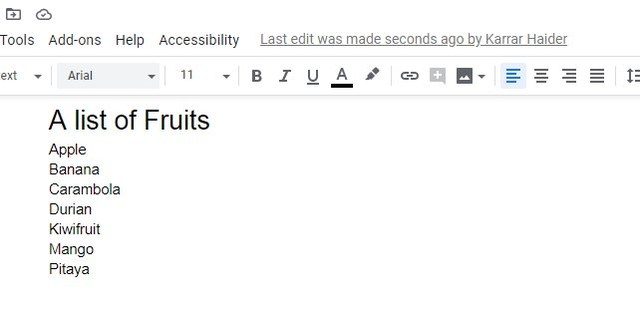
The list will be sorted alphabetically after a small delay. If needed you can also select the option “Sort the selection descending” to sort the list from Z-A.
I am sure it would have been great if this feature was built-in Google Docs. However, I will not blame Google for it as Google Sheets is usually used for creating and sorting lists, not Google Docs. Doc Tools should work fine for sorting alphabetically in Google Docs, but if you want another option then Sorted Paragraphs is a good option too.
The post Use This Simple Add-on To Alphabetize In Google Docs appeared first on Gtricks.


