I often mess around with network settings on my desktop and phone, and I can confirm IP address is the most important piece of information you’ll need for network configuration. There are different types of IP addresses — router, local, and public — and each one serves a different purpose. If you need to configure network setting on your Android phone, you’ll need to know how to find IP address on Android.
In today’s post, I’ll tell you how to find the router, local, and public IP address on Android and what each type of IP address is used for.
Note: Before following the below instructions, make sure you are connected to a network (WiFi or mobile network).
How to find router IP address on Android
Router IP address (a.k.a gateway address) is used to access the router settings interface to configure the router settings. You just need to enter this address in your browser address bar and the router settings will open up (may require a password). Here’s how to find router IP address on Android:
- Go to “Settings” and tap on “Wi-Fi” settings”.
- Here tap and hold on your connected network and then select ”Manage network settings”.
- Now check the checkbox next to “Show advanced options” and select “Static” under “IP settings”
- You’ll find the router IP address under the “Gateway” section.
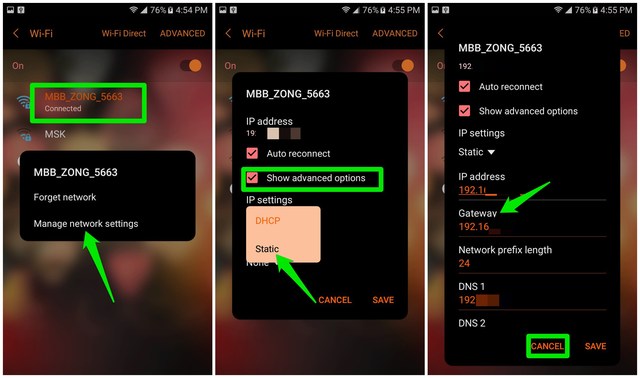
Important note: After finding the router IP address, make sure you tap the “Cancel” button instead of “Save”. You probably don’t want “IP settings” to be set to “Static”.
How to find local IP address on Android
Local IP address is used to identify different devices on the same network. The router automatically assigns a local IP address to every device that connects to it. This address can be used to identify each device on a network and connect them. For example, if you want to connect an app on your PC with your Android phone, then local IP address of at least one of the devices is needed.
Here’s how to find local IP address on your Android phone:
- Go to “Settings” and tap on “About device” option at the very bottom.
- Here tap on “Status” and you’ll find the local IP address listed under the “IP address” section.
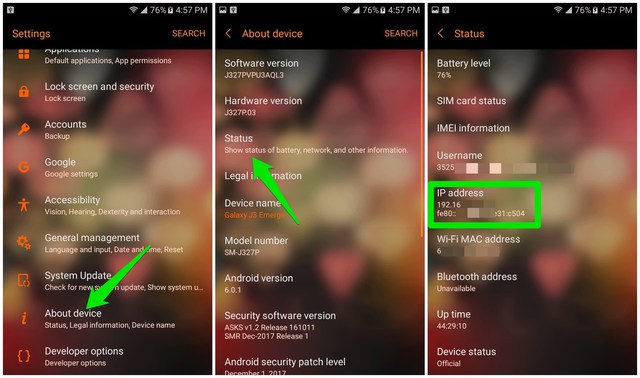
There might be both IPv4 and IPv6 addresses listed. The one that looks like “192.168.x.x” is the IPv4 address, you should use this one.
Note: This method may not work on older Android phones. If that’s the case, then follow the above instructions I have provided to find router IP address and you’ll find local IP address right above the Gateway address.
How to find public IP address on Android
The public IP address (a.k.a global IP address) is revealed to the whole web to identify your device and send back information. For example, when you send a request to a web page, the public IP address is sent along with the request so the web page will know where it needs to send back the information. Here’s how Google explains it.
You probably need to know public IP address if you have to remotely access your device from a different place/network. Whatever the case may be, here’s how to find your public IP address on Android:
- From your Android phone, open up the browser and type “what is my ip” in Google search. Google will automatically show your public IP address at the top.
- Alternatively, you can also visit the website WhatIsMyIP.com to find your Android public IP address.
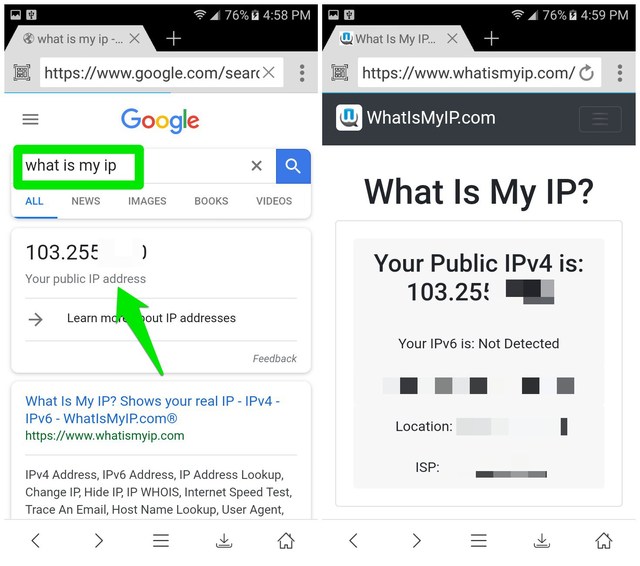
Tip: If you frequently need to check your public IP address (like if you use a VPN to access blocked content), then a dedicated app like Check IP Address would be helpful.
Ending thoughts
Both router and local IP address can be found right inside the phone settings, but for public IP address, you’ll have to get some help from a third-party service. Furthermore, the use of local and public IP address can be a little confusing. Just remember that local IP address is only needed when all the connected machines are on the same router. For everything else, use the public IP address.
The post How To Find IP Address on Android (Router, Local, and Public IP Address) appeared first on Google Tricks Blog.
via Gtricks http://ift.tt/2F4TtNX
 Simple x264/x265 Launcher is a lightweight app with a simple GUI for the x264 H.264/AVC as well as the x265 H.265/HEVC encoders. It can be used on 64-bit versions of encoders and provides support for Avisynth and VapourSynth input. Simple x264/x265 Launcher has a user-friendly layout, which makes it easy to add files using the built-in brows...


 Nox App Player is a free Android operating system emulator, that allows you to run Android apps on your PC. A separate Mac version is also available. It works by creating a virtual Android tablet on your desktop. This of course means that you can enjoy Android apps and games with the benefit of a bigger screen, better hardware performance and eas...


 Switch Audio File Converter allows you to convert common file types to a very comprehensive variety of audio output formats including: WAV, MP3, WMA, M4A, OGG, AVI, MID, FLAC, MOV, AMR, AAC, AU, AIF, RAW, DVF, VOX, CDA, GSM, DSS, WMV. KEY FEATURES INCLUDE: Universal audio converter supports all popular formats. Convert or compress sound fil...


 mIRC is a full featured Internet Relay Chat client for Windows that can be used to communicate, share, play or work with others on IRC networks around the world, either in multi-user group conferences or in one-to-one private discussions. It has a clean, practical interface that is highly configurable and supports features such as buddy lists, fil...


 Icecream Screen Recorder is an application for screen capture and taking screenshots. Icecream Screen Recorder can both take screenshots and capture video and you can even switch between these 2 modes very easily; Just press the button in the top left corner of the application. Key Features Include: Video can be taken with or without system sound...


 VideoPad Video Editor allows you to edit video from any camcorder, DV camcorder, VHS or webcam. You can import almost any video file format including avi, wmv, mpv and divx. VideoPad Video Editor has stacks of transitions and visual effects to choose from including chroma key green screen video production and 2D to 3D stereoscopic conversion. Yo...

