Android “no command” error usually shows up when you try to access the recovery mode or while installing a new software update. In most cases, your phone is just waiting for a command to access recovery options. However, in a rare situation, you may get stuck in a boot loop with no command error showing up every time you start the phone.
Whether you are only trying to access Android recovery mode or you are stuck in a boot loop with this dreaded message, I’ll help you get out if it. In this post, you’ll find multiple solutions to fix no command error on any Android phone.
Fix No Command error to access Recovery Mode
If you are seeing this error while you boot your phone in recovery mode, then the phone is actually waiting for a command to proceed. A simple key combination should help bypass no command screen.
Below is a list of key combinations that could help bypass no command error and access recovery mode. Make sure you hold the keys for at least 2-5 seconds.
- Press and hold Power+Volume Up keys.
- Press and hold Power+Home+Volume Up keys.
- Press and hold Power+Volume Down keys.
- Press and hold Power+Home+Volume Down keys.
- Press and hold Power+Home keys
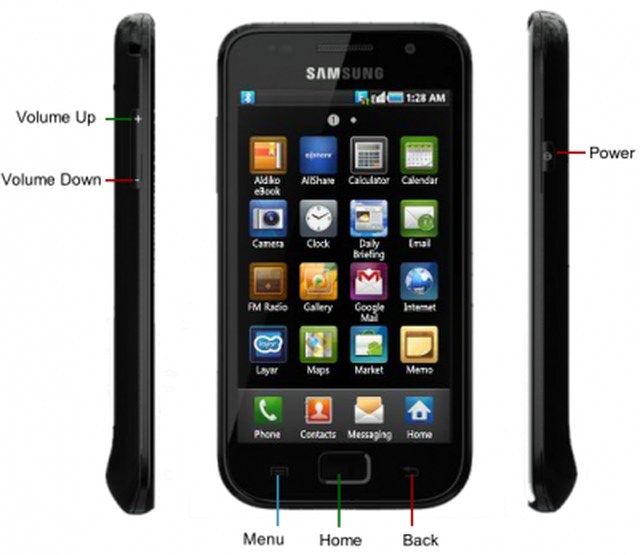
Depending on your phone manufacturer, one of these combinations should fix no command error and open up recovery mode.
Fix No Command error boot loop
If your phone is stuck in a boot loop with no command error showing up, then you can try a few solutions to fix it. Usually, this happens due to improper software installation or even a simple device cache error.
Before following these solutions, follow the above instructions to access Android recovery mode. If you can’t open up recovery mode from no command error screen, then turn off the phone by taking the battery out and then try the above mentioned key combinations.
Note: While in the recovery mode you can only use the physical keys to navigate. Use Volume Up and Down keys to move up and down, and use the Power button to execute a command.
Wipe cache partition to fix no command error
This is the easiest solution that won’t cause any data loss, let’s hope it fixes the problem. In the recovery mode, press the Volume Down key and move to the “Wipe cache partition” option. Now press the Power button and then press it again to confirm cache deletion.
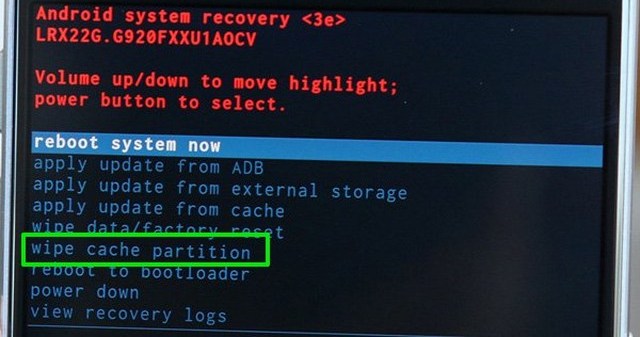
Afterward, use the “Reboot Device” option in this list to restart the phone and see if no command error is fixed or not.
Manually install Update
If you are seeing this error particularly after a software update or while trying to flash a custom ROM, then here’s what you need to do:
Use the Volume Down key to move to the “Apply update from cache” option and press the Power button to open it. Here select the available software update and press the Power button to manually install it.
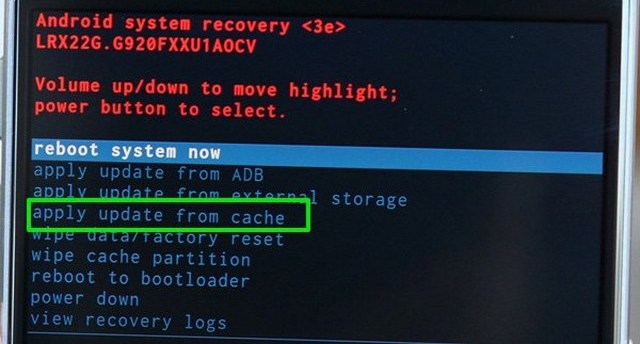
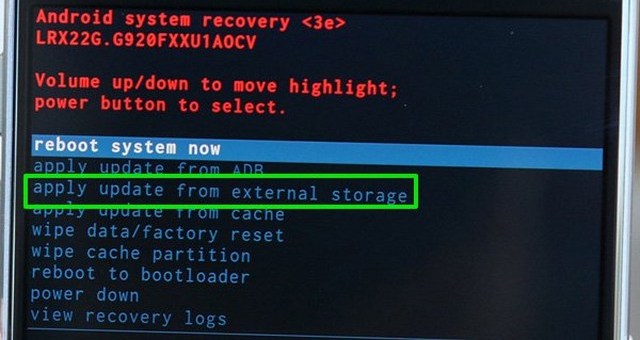
If you faced no command error while flashing a custom ROM, then go to the “Apply update from external storage” option. Here access the “Updater” option and then select the software file you had downloaded.
Factory reset phone
If nothing is helping you, then a Factory data reset will surely fix the no command error. However, this process will also delete all the data on your phone. Make sure your important data is backed up properly before doing a factory reset.
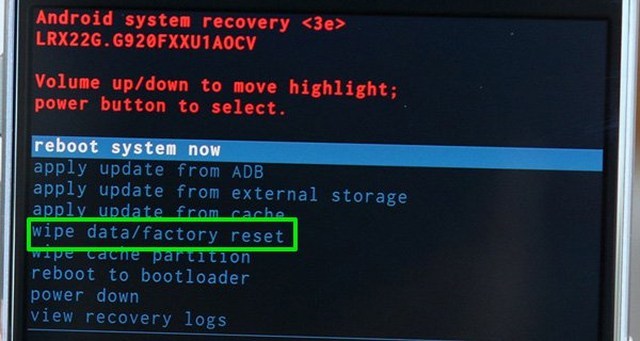
Use the Volume Down key to move to the “Wipe data/factory reset” option and press the Power button. Now confirm the prompt and the reset process will start. Once completed, your phone will start normally and you’ll have to set it up again.
If your phone is still not starting, then here’s a guide with more solution to start an Android phone.
Conclusion
In most cases, no command error isn’t actually a problem but rather a feature of the phone. Before entering recovery mode, your phone is simply waiting for a command and you can use the right key combination to access recovery mode. However, if your phone is stuck in no command screen and restarting the phone isn’t helping, then a manual update or factory reset should fix it.
If you managed to fix no command on your Android phone, do let us know which one of these solutions worked.
The post How To Fix Android “No Command” Error – A Definitive Guide appeared first on Gtricks.
via Gtricks http://ift.tt/2pqenB5
 If you have a large collection of audio files and need to categorise them quickly, then Kid3 Audio Tagger is a great choice. Kid3 Audio Tagger is both lightweight and easy to use. With it, you can edit the tags of all your audio tracks, no matter what format they are in. It supports all kinds of files types, including .MP3, .FLAC, .MP3, .WAV...


 The features which are present in other BitTorrent clients are here in µTorrent, including scheduling, bandwidth prioritization, RSS auto-downloading and compatibility with BitComet-Mainline DHT. µTorrent also supports peer exchange and the Protocol Encryption joint specification (compatible with Vuze / Azureus 2.4.0.0 and above and BitComet 0.63 a...


.png) The Google Backup and Sync tool replaces the Google Drive and Google Photos desktop uploader. This tool allows users to sync videos, photos and all manner of files from various internal and external storage sources. Google Backup and Sync does not replace the apps, rather the change is the way users can upload their data on to the cloud and ...
The Google Backup and Sync tool replaces the Google Drive and Google Photos desktop uploader. This tool allows users to sync videos, photos and all manner of files from various internal and external storage sources. Google Backup and Sync does not replace the apps, rather the change is the way users can upload their data on to the cloud and ...


 Advanced IP Scanner is a free, fast and powerful network scanner with a user-friendly interface. In a few seconds, Advanced IP Scanner can locate all the computers on your wired or wireless local network and conduct a scan of their ports. The app scans all network devices, and gives you access to shared folders and FTP servers. It provides remote...


 Kaspersky Password Manager is able to securely store your passwords, addresses & banking details, and can then synchronize them across your various devices, whether that be PC, Mac, Android phone & tablet, or iPhone & iPad. The app is really easy to setup and use; just install it, and run through a quick process to choose a master passw...


 When you install most programs they place several new registry items and files all over your system. However when you try uninstalling, many programs leave behind some items you will never need. This unnecessary junk accumulates over time and only slows down your computer. Also many programs install unnecessary background processes that run automat...

