The First Ever Journalist Allowed to Walk Through the Google’s Top-Secret Lab

Google allows a journalist named Mark Wilson from Fast Company, the world’s leading Progressive Business media brand, to call on inside their top-secret design lab where the tech giant manufactures its hardware products ranging from smartphones to smart speakers sought-after in every nook and corner of the world.

According to the original article containing thorough particulars of the premises and environs of the lab, the building is on Google’s Mountain View, California, campus; and is of seventy thousand square-foot, and consists of only 150 fortunate designers who take pride in planning, crafting, testing, and issuing its tens of hundreds of products that it launches every now and then under the leadership of vice president and head of hardware design Ivy Ross. She herself being a jewelry designer has enormous knowledge of creating customized and optimized designs of products as can be observed through her vivid opinions about the building and products.

“Google’s blueprint for how they optimize is great for most people at the company,” she says, adding that designers need different things.

Astoundingly, the lab is impermissible to most of the company’s employees. Mark Wilson is the first-ever journalist to have sneaked into the inside of the building space, which Ross refers to as a huge gift from Google’s executive team during the visit.

The lab was in its establishing phase when it was opened last year in June 2018, facing a lot of difficulties in its best setting for its employees to see any kind of enhancement to promote its products. To overcome such an issue, Ross, being a jewelry designer joined in with the architect behind many other Google’s buildings named Mithun and came up with this homelike building where one can have tactile experiences such as (fabricated-covered gadgets) as understated in the original article on the media group’s website.

To initiate the process of making it better and more friendly, instead of the darkness that is usually required while working in such tech companies, she tells that she indicated at the need of introducing light in the building.

“Essentially the first thing I said was, we need light,” she recollects, reminiscing about her earlier days in the lab when it was undergoing the process of renovation.

As stated by the journalist, the lab is a two-story at the entrance and has a skylight atrium capacitating comfortable seating and café tables to arrange casual meetups. The staircase leads up to the library having six favorite books of each employee, and a note inscribed on them suggesting the reason for these books being important to them.

The second story pavement gives the impression of a shopping mall to employees, making the environment of window-shopping as one can see glass walls on both sides: one for color lab, while the other for material lab; so that designers can come up with new and innovative ideas.

Despite allowing the journalist to have a look at the aesthetics of lab, many things as reported were left covered, suggesting the probability to maintain the security of them, and to keep things unrevealed until they are out in the market.

The post The First Ever Journalist Allowed to Walk Through the Google’s Top-Secret Lab appeared first on Gtricks.


via Gtricks https://ift.tt/2MILXyQ

Here’s a Neat Trick To Split PDF Files Using Google Chrome

Due to the popularity of PDF format, Chrome natively supports a PDF viewer to let you quickly view PDF files online. Although it’s still a basic viewer, but it’s customizable enough to pull out some neat tricks. For example, you can use it to remove the password from a PDF file, or as you are about to learn; split a PDF file.

There are many online and offline tools that allow you to split a PDF file into multiple files. However, why go for a third-party tool when your go-to browser can handle it for you? If you are a Google Chrome user, then here’s how you can easily split PDF files using Google Chrome.

Note: This trick also works in other Chromium-based browsers, such as Opera.

Split PDF file using Google Chrome

First, you’ll have to open the PDF in Google Chrome. Chrome automatically opens PDF files in its built-in PDF viewer, unless you have stopped it from displaying PDF files or another PDF viewer overrides it. If that’s the case, then right-click on the PDF file and select “Google Chrome” from the “Open with” menu.

Open PDF in Google Chrome

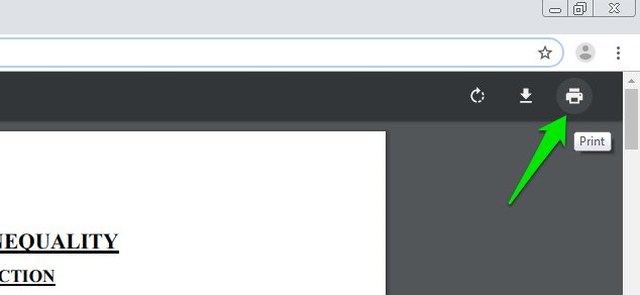
Once the PDF opens up, click on the “Print” option at the top-right corner or use the Ctrl+P keyboard shortcut.

Print PDF

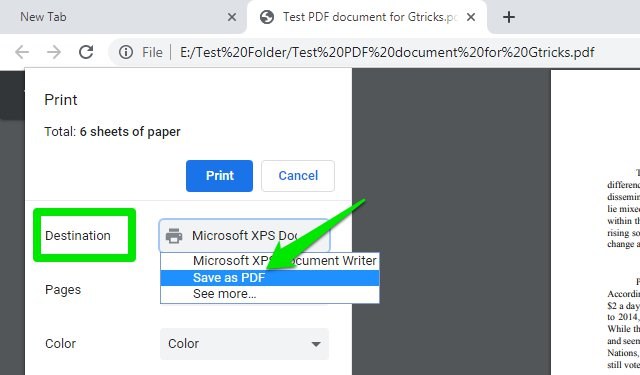
Here in the “Destination” section, select “Save as PDF”.

save as PDF

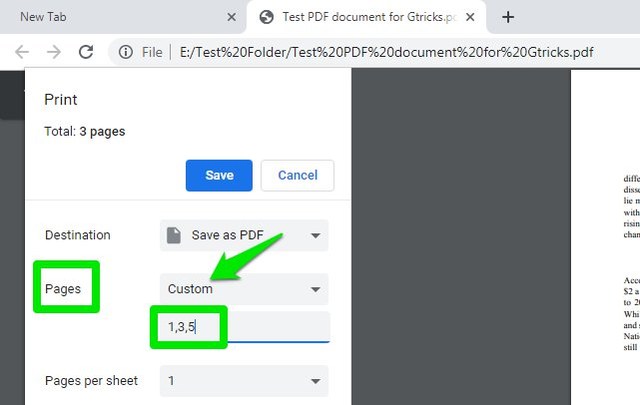
Now select “Custom” in the “Pages” section and then enter the page numbers that you would like to split. If you want to select a range of pages — say from page 4 to page 17 — then type “4-17”. You can also select individual pages by separating them with a comma, like this “1,4, 7,12, and so on”. The preview on the right will update to show the selected pages.

set number of pages to split

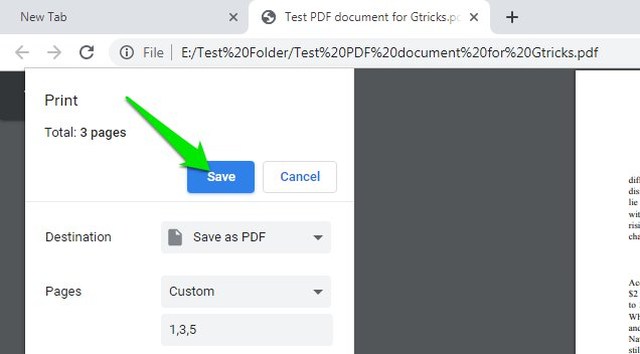
After selecting the pages to split, click on “Save” and save the split PDF anywhere in your PC. That’s it, you have successfully split the PDF file using Google Chrome.

save split PDF

Ending thoughts

It’s very easy to split PDF files using Chrome. Although, I don’t work with PDF files often, but Chrome does a fine job of managing them when I do need to deal with one. I should also mention that during the process the original PDF file will not be changed in any way. A copy of it will be created containing the split pages.

If you have any questions, feel free to ask in the comment below.

The post Here’s a Neat Trick To Split PDF Files Using Google Chrome appeared first on Gtricks.


via Gtricks https://ift.tt/2yFUhXR

[Tip] How to Disable Touch Screen in Windows 10

https://ift.tt/eA8V8J Recently when I posted article about fixing touch screen not working in Windows 10 problem, an AskVG reader asked me an...

Read the full article at AskVG.com

via AskVG https://ift.tt/2OFNOHn

4 Android Bluetooth File Transfer Apps To Supercharge Your Phone’s Native Bluetooth

Bluetooth technology might be a little outdated when it comes to transferring files, but still many of us use it today when a WiFi connection isn’t nearby. If you often need to transfer files using the Bluetooth of your Android phone, then I know a bunch of apps that can give extra wings to the basic Bluetooth feature of your phone.

Each of such apps has got a couple of unique features that can help you get more out of your Bluetooth file transfer experience. Let’s get straight to them:

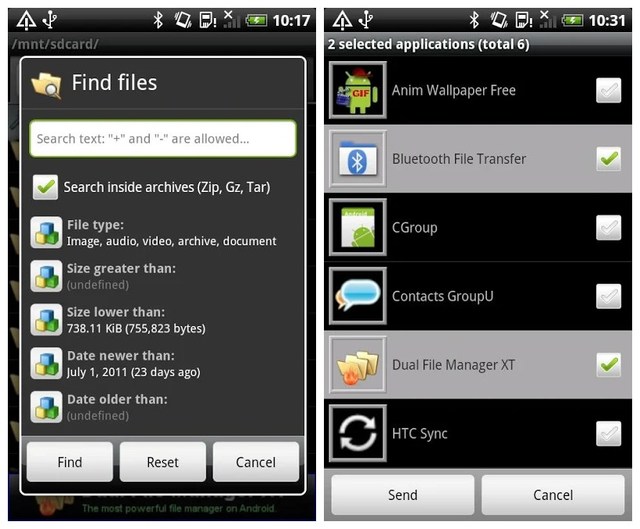
Bluetooth File Transfer by Medieval Software

Besides sharing files and data with other devices, the app allows its users to browse the phone of any other Bluetooth ready device as well by its File Transfer Profile and Object Push Profile. The app is, fortunately, free of cost, and is supported by 21 different languages using its unique Multilingual user-interface. You can also share contacts in VCF form and applications as APK files. Furthermore, you can search, copy, rename, move, and delete your files and folders using the built-in file explorer.

Bluetooth File Transfer by Medieval Software

Bluetooth Files Transfer by Modern Perfomance Develop

This app basically adds a bunch of extra features to the native Bluetooth feature to enhance your overall Bluetooth file transfer experience. It permits you to send files profusely to the other device which is hence a rarity. There is a built-in file explorer and an image viewer to both manage and send files from the same interface. It can also work as applications back up tool or share them as APKs via Bluetooth. In addition to this, it supports other familiar platforms for sharing including Google Drive and Dropbox.

Bluetooth Files Transfer by Modern Perfomance Develop

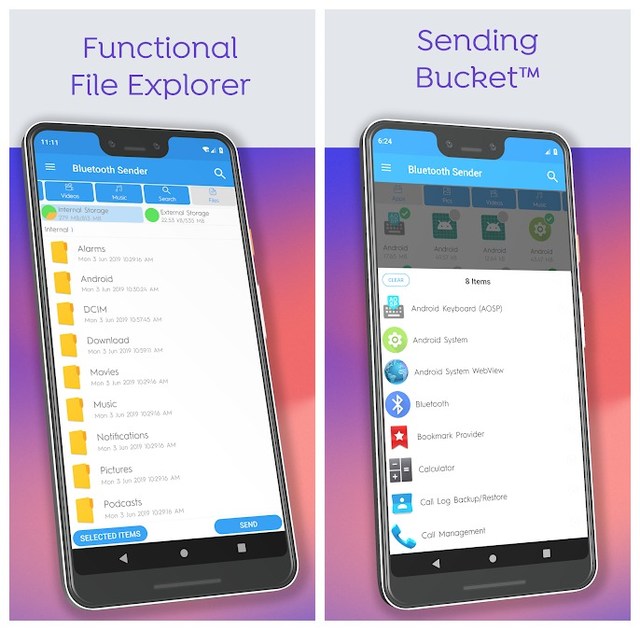
Bluetooth Sender – Transfer & Share

Sending system applications whatsoever usually isn’t possible, but this Bluetooth app easily allows you to do that, astonishingly. Just like regular apps, it can extra the APK file of any system app without rooting. The app also contains a feature called Sending Bucket that makes one capable of listing all the selected items, and this is something I’d say is very catchy.

Bluetooth Sender - Transfer & Share

Another more fascinating and powerful feature of the app is that it has the option of selecting all sorts of items with different extensions at the same time. Whether it is an audio/video file or any application with APK extension; just select them irrespective of their formats, and share or send over. In addition to all these amazing features, you can also extract your applications to back up all your apps.

Bluetooth App Sender APK Share

Generally sending or sharing apps is considered to be a hard job; especially when you are out of your data, or the internet connection isn’t available in your surroundings. It is one of the main functions of the app that it lets you send in applications without any aimless interference to the other device. And if the internet connection is within your reach, the app has also the option of sharing apps via Facebook, email, or any other sharing method. Through the app, you can also view all installed apps along with their particulars on your device at once, and uninstall unwanted ones with just one tap.

Bluetooth App Sender APK Share

Ending thoughts

These were some Bluetooth file transferring apps I found to be very useful. And I’m sure that all your puzzles regarding the issues that you face during transferring files will have been solved without any apprehension. Just read the description given above, pick up the app that is relevant to you, and install to synchronize. Which one of these apps you’ve liked; don’t forget to share below in the comments section.

The post 4 Android Bluetooth File Transfer Apps To Supercharge Your Phone’s Native Bluetooth appeared first on Gtricks.


via Gtricks https://ift.tt/2OCt1V0

[Canary Update] Google Chrome 78.0 Comes with New Custom Color Picker Option

https://ift.tt/eA8V8J NOTE: This article is regularly updated when a new feature is implemented in Canary (Nightly), Developer or Beta versions of Google...

Read the full article at AskVG.com

via AskVG https://ift.tt/330YhQG

[Fix] Windows 10 Touch Screen Not Working After Update

https://ift.tt/eA8V8J Yesterday I installed a cumulative update in one of my Windows 10 devices. The device was a touch-enabled Dell PC. I...

Read the full article at AskVG.com

via AskVG https://ift.tt/339AlLg

Chrome 76 is Here With a Fortified Incognito Mode and Further Measures to Kill Adobe Flash Player

Chrome comes up with newer and smarter features for its widespread users with stability and performance improvements in its recent release. Long-awaited features that the users of the browser have been looking forward to being added are included in the layout of its fresh version (Google chrome 76). Among them are the enhancement in incognito browsing, generation of strong and unique passwords with chrome’s built-in password manager, Adobe Flash Player disabled by default, and automatic dark mode during the surfing on websites.

“In Chrome 76, we’re making it easier for users to install progressive web apps on the desktop by adding an install button to the address bar, sometimes called the Omnibox,” said one of the developers while explaining the new features in a YouTube video, adding that many operating systems now support a dark mode or theme, hinting at its another recently launched feature during the manifestation of various other properties in the video.


According to the observation of the situation what looks more of an assistance to the users, and what seems to be so far the biggest change in the browser is the impossibility of Incognito mode being detected by websites. Incognito mode is used by people for the protection of their private browsing and data if they have security issues, but by far many websites have been able to intrude onto this space, unfortunately.

Up till now, it has been very easily possible for websites to detect whether the incognito mode is turned on or off on someone’s device, so that they could prevent their visitors to overpass their paywalls; But from the release of Chrome 76 on, it will be harder for websites to detect as the loophole has been strenuously addressed by the giant and its developers. Many reading websites with their ability of detection usually do not allow visitors to go beyond a certain extent during their reading through a file-system API request, but as the issue is resolved now, such websites will have to face serious challenges and take certain measures to prevent users to bypass their paywalls.

It is obvious that Google will not, however, be liable to any website’s policy as it suggests that to get by paywalls, websites should require readers to log in.

Another new feature that has been added to the browser is that the flash player will be disabled by default. Users will have to enable it manually. Nonetheless, Chrome warns its users that the player will no longer be supported by the browser onwards December 2020. Adobe too has been trying to get away from the flash player, insinuating that it also stands by the tech giant. It would definitely annoy users, but generally, it is considered that the move is aiming at taking off the flash player from websites.

Chrome 76 also comes an automatic dark mode. It is more likely to help web developers during the undertaking of their websites. It will let users able to have a suitable screen while browsing on different websites as their developers will have the convenience of plucking the mode into users’ browser according to their own preferences.

Another feature that has been added, and is considered to be more helpful is the users’ awareness of tracking down their data by different extensions. Users will easily be able to check up on it as to ensure their confidentiality.

The post Chrome 76 is Here With a Fortified Incognito Mode and Further Measures to Kill Adobe Flash Player appeared first on Gtricks.


via Gtricks https://ift.tt/2M1hDAb

9 Android Phone Features That You Can’t Get on iPhone

We see lots of people around us boasting about having iPhone that they’d probably have purchased at the cost of two android cellphones or even more. One can spend lavishly on their own personality along with a good phone with good looks if they don’t bother themselves buying an iPhone at the expense of their huge savings, or sometimes their periodic salary. And I’m sure right now you are queerly looking at this article.

But the reason for me being a bit sarcastic is to tell those people that having an android phone is bliss. You know why? Because I myself have been the user of both of these operating systems: And to my surprise, I’ve found out some elemental features that you can enjoy if you have an android phone instead of an iPhone. I’m gonna enumerate just a few of them which have been persuasive enough for me to write on the subject.

1. Multiple users at the same time

You can’t share your iPhone with someone else for their personal usage. Only one person has all the rights to use the device due to its one-user dimension. There is only one user account that you can create with all internal storage available for the device, be it 16 GB or 1 TB, it doesn’t matter. But devices that are being run by the android system with their customization allow you to have many user accounts with their different settings and apps at the same time. So no issue if you and your spouse use the same phone, or you have different apps installed for your office-time, and different ones when you are home.

Related: Best Way to Clone Android Apps to Manage Multiple Accounts

2. Split the screen of your phone

Many times we want our phones just to work like us. I mean two people in one skin; one who is here physically; while the other who is somewhere else emotionally. Consider yourself using WhatsApp, and chatting with four to five people simultaneously; at the same time, you want to scroll up and down on your Facebook newsfeed as well. iPhone doesn’t have this option, but yes if you have an android phone with its large screen, it’s possible for you to split it, and get a go-ahead for your ease!

Split Screen on Android

3. Storage issues

iPhone only gives you internal storage that is there already built-in. You can’t do anything for its expansion if you have data beyond the capacity of your phone. However, most Android phones come with built-in support for SD cards to expand storage space to your need. Using a 256 GB SD card with an Android phone is a normal thing, and it can go as high as 2TB!

4. File transfer using Bluetooth

Sitting in a company, and someone has just played a song that you immediately want in your own device. Imagine that your Wi-Fi is either not working or not available, what will you do. IPhone’s Airdrop won’t support you here because it’s just for iOS users, you know. You would just wish that had you been an android user, you could have had it instantaneously.

Android bluetooth file transfer

5. The difference in Home Screens

Using the iPhone’s home screen does make you feel a bit organized, but it’s no wonder that you can have more options with your home screen if you are an Android phone user. You can just modify the order of your apps, choose a different image as wallpaper, add settings sub-items as shortcuts, and create folders to reshape the mess of apps on the home screen of your phone. But you can’t actually use widgets except for the notification screen if you have an iPhone user. And then, unlike the android phone, there is no apps drawer available for you in the iPhone.

Android and iPhone Home screens

6. Closing all apps with one tap

iPhone users know that to close any app, they have to open the App Switcher and close them one-by-one which becomes very tiring especially if you are busy somewhere, or when you’ve lots of other stuff to manage. In your android device, you can just do away with all the apps opened with a single tap.

Close all apps on Android

7. Instant Apps

Google has recently introduced this new feature in Android devices called Instant Apps. The feature allows you to use any app without its downloading and installation, and if you don’t like the app, you can just come back, start using your phone normally, no need to uninstall. On the other hand in your iPhone, you can’t really experience such a thing without getting yourself into trouble by installing and testing the app entirely yourself.

Android Instant Apps

8. Default Apps

You have to adhere to what is already there they’ve got for their users. Yes, I’m talking once again about iOS. You can’t change default apps’ settings on your iPhone, though on Android it’s fully customizable. For instance, I like to use Chrome to be set as my default browser, so do I want every link to be opened by it. But whenever anything opens there in my iPhone, it opens with Safari which I actually hate. Same is the case with my keyboard settings, messaging app, phone app, digital assistant and many other things.

9. Battery power and charging capacity

Just ask the android user, and they would tell you how much this fact relieves the tension that they are in piece with their phone’s battery. As compared to the iPhone, the battery of an android cell-phone works way better. You may spend a day out with 50% of your android cellphone’s charging, but believe me, 100% of your iPhone won’t literally suffice, especially if you are having the older version of it. And if you happen to take pictures throughout the day with your iPhone, then make sure to have power-bank along with you so that you don’t get into trouble. Don’t ask your friend if he/she has the Android one, because they’ve already got their problem solved!

Ending thoughts

Whether Android is better or iPhone, it’s a never-ending topic. Android has its fair share of advantages and so does the iPhone. In the end, it all boils down to the preferences of the users and what they need from there smartphone. Above are just some good features of Android that iPhone still needs to catch up on, and if you particularly like them, then Android phone might be a better choice than iPhone for you.

What appeals to you the most, Android or iPhone? Do share with us in the comments below.

The post 9 Android Phone Features That You Can’t Get on iPhone appeared first on Gtricks.


via Gtricks https://ift.tt/2GEcLg1

[Tip] Enable Redesigned “New Tab Page Customization Menu” in Google Chrome

https://ift.tt/eA8V8J When you open a new tab in Google Chrome web browser, you get a "Customize" button at the bottom-right corner of...

Read the full article at AskVG.com

via AskVG https://ift.tt/2yBLaYt

5 Best Android Gestures Apps to Control Your Phone with Gestures

Swiping up and down and pressing tap or double-tap to control our android phones completely is not merely what we can just imagine, it’s something that we can shockingly do as well. Surprisingly, our gestures too can become the regulator of our phones if it’s needed. Any android phone with its updated version would be enough for you to go ahead. Simply download any of the following apps from the Google Play Store, and have a look at how you can really do that!

Wave Control

Being in a position when we feel it awkward to touch our phone is what all of us experience frequently. For example, we’re having our mealtime and we have to attend an important call, or we’re driving, and we want our favorite songs to play on repeat; we feel bad for not being able to touch the screen. You will not believe it, but doing that is actually possible. You can control your music and video playbacks and calls with waves of your hands over your phone by Wave Control. No touching is required at all, and this is what will make you download the app on every phone you’ll be using from now on!

wave control

Fluid Navigation Gestures

With the use of Fluid Navigation Gestures, you can control your phone with just two main gestures: quick swipe, and swipe and hold. Busy somewhere, or don’t feel like using the phone but still is necessary, use the app to access back, home screen, recently opened apps, open notifications, open power dialogue, open quick settings, launch any app or shortcut, and much more that you want at the moment!

Fluid navigation gestures

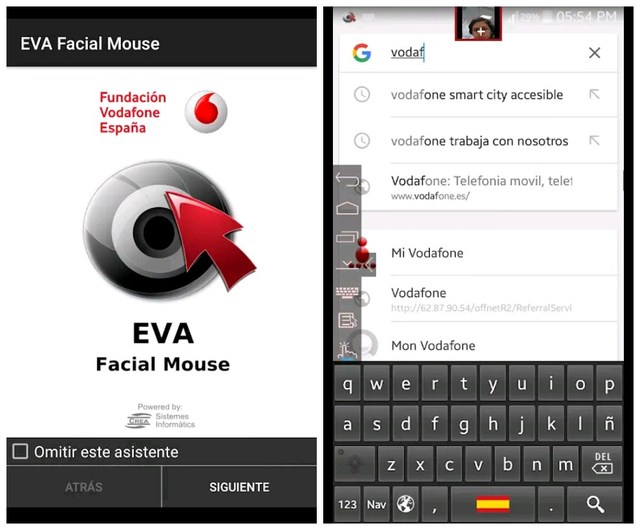
EVA Facial Mouse

You can use a pointer on the screen of your phone via your face to directly access most elements of the user interface. The movement of your face will decide what do you want to access. Android constrictions have been between the developers of the app and the operating system itself, otherwise I’m pretty sure what is not accessible by using the app at present might have been innovated and featured for its users around the globe by now. Users of the app are specified some compatible apps along with a basic keyboard, which has to be activated by hand after the installation.

Eva Facial Mouse

Fingerprint Gestures

To use the app, the first thing you need to ensure is a fingerprint sensor on your device. The second requirement of the app is for you to have Android 6.0+ if you are having any device other than Samsung, while as for Samsung, your device will be easily compatible even if you are using Android version 5.0+. The best thing about the app is that it enables the fingerprint actions of Google Pixel on your device. You can do several things by single tapping or double-tapping and swiping up or down on the fingerprint sensor of your device.

Fingerprint gestures

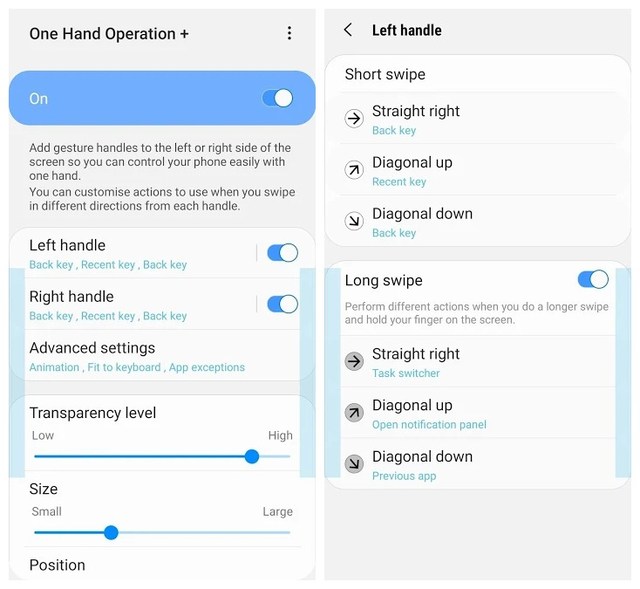
One Hand Operation

Created by Samsung Electronics, the app allows you to control all the functions of your phone just with your thumb. Thin gesture handles can be added to the left and right sides of the screen that will assist you in executing defined tasks. By default, the back button is set for the handle, something we often use wherever we are. Other options you can set as gestures include home, menu keys, quick tools, screen brightness, recent app, forward web browser and many other options that you tend to do in a hurry without any confusion.

One hand Operation

After experimenting all these apps myself, I am recommending you to choose any of these apps, and believe me you will be pleased to see the productivity while navigating your phone. Don’t forget to leave your feedback below in the comments section.

The post 5 Best Android Gestures Apps to Control Your Phone with Gestures appeared first on Gtricks.


via Gtricks https://ift.tt/2LPS0lv

[Software Update] Opera 129.0.5823.44 Stable Released, Here is What’s New and Fixed

UPDATE: Release of Opera 129.0.5823.44 stable version to public. Good news for Opera users! Opera team has released new Opera 129.0.5823.44 ...