Read the full article at AskVG.com

via AskVG https://ift.tt/2ZoB77s


Spring Boot Webflux DynamoDB Integration tests – In this tutorial we will see how to setup integration test for a Spring Boot Webflux project with DynamoDB using Testcontainers. This post will use the example from previous Spring Boot Webflux DynamoDB tutorial. Let us add integration tests using Testcontainers and integrate DynamoDB tests with our Spring Boot project.
Testcontainers is a Java library that supports JUnit tests, providing lightweight, throwaway instances of common databases, Selenium web browsers, or anything else that can run in a Docker container.
The key here is Docker containers. It allows us to use any Docker image and run it as container within our integration tests. There are number of standard Testcontainers available to test integration with technologies such as Elastic search, Kafka, RabbitMQ etc. We can also use any Docker container using Testcontainers GenericContainer api.
One key thing to remember while using Testcontainers is that local Docker installation is required to run these test cases. If you are running your integration tests in continues integration (CI) pipelines, remember to use machine instance instead of docker. As Testcontainers need Docker to run, we cannot run it inside a Docker container in CI. Usually all the standard CI platforms such as Circle CI do provides machine instance where you can run your integration tests.
Add following dependencies for Testcontainers and Junit support for Testcontainers.
build.gradle
testCompile "org.testcontainers:testcontainers:1.14.1"
testCompile "org.testcontainers:junit-jupiter:1.14.1"
Or if you are using Maven, add following test dependencies.
pom.xml
<dependency>
    <groupId>org.testcontainers</groupId>
    <artifactId>testcontainers</artifactId>
    <version>1.14.1</version>
    <scope>test</scope>
</dependency>
<dependency>
    <groupId>org.testcontainers</groupId>
    <artifactId>junit-jupiter</artifactId>
    <version>1.14.1</version>
    <scope>test</scope>
</dependency>Once the dependencies are defined, we can start using the Testcontainers in JUnit. First thing is to define a GenericContainer object with official docker image of DynamoDB amazon/dynamodb-local. The withExposedPorts() method defines the port where DynamoDB will be listening to inside the Docker container. The GenericContainer object is annotated with @Container annotation. This annotation works in conjunction with @Testcontainers annotation to mark containers that should be managed by the Testcontainers extension.
private static final int DYNAMODB_PORT = 8000;

@Container
public static GenericContainer dynamodb =
        new GenericContainer<>("amazon/dynamodb-local")
            .withExposedPorts(DYNAMODB_PORT);
Testcontainers will start the Docker container with DynamoDB on the given DYNAMO_PORT 8000, however that will be the internal port which we need to map to actual random port which the AWS DynamoDB client from Spring Boot app can connect to.
Since our Spring Boot app connects to DynamoDB on the host and port defined under application.dynamodb.endpoint config in application.yaml file, for the test case we need to override this config at runtime to point to actual host and port where Docker is running.
To achieve this we are using ApplicationContextInitializer to override the application.dynamodb.endpoint property. We are using GenericContainer‘s getContainerIpAddress and getMappedPort method to get the ip address and actual port number of DynamoDB running inside Docker.
public static class DynamoDBInitializer implements ApplicationContextInitializer<ConfigurableApplicationContext> {
    @Override
    public void initialise(ConfigurableApplicationContext ctx) {

        TestPropertyValues.of(
                String.format("application.dynamodb.endpoint: http://%s:%s",
                    dynamodb.getContainerIpAddress(), dynamodb.getMappedPort(DYNAMODB_PORT)))
                .applyTo(ctx);
    }
}In following RoutesTests, we have one testcase that creates a blank table customers and then uses Spring’s WebTestClient to call POST /customers API. The testcase checks the response from API. Since this is an integration test, the whole service is booted and the customer record is created in DynamoDB database using Testcontainers.
RoutesTests.java
package net.viralpatel.springbootwebfluxdynamodb;

import net.viralpatel.springbootwebfluxdynamodb.customer.Customer;
import org.junit.jupiter.api.Test;
import org.springframework.beans.factory.annotation.Autowired;
import org.springframework.boot.test.context.SpringBootTest;
import org.springframework.boot.test.util.TestPropertyValues;
import org.springframework.context.ApplicationContextInitializer;
import org.springframework.context.ConfigurableApplicationContext;
import org.springframework.test.context.ContextConfiguration;
import org.springframework.test.web.reactive.server.WebTestClient;
import org.testcontainers.containers.GenericContainer;
import org.testcontainers.junit.jupiter.Container;
import org.testcontainers.junit.jupiter.Testcontainers;
import reactor.core.publisher.Mono;
import software.amazon.awssdk.services.dynamodb.DynamoDbAsyncClient;
import software.amazon.awssdk.services.dynamodb.model.*;

import java.util.concurrent.CompletableFuture;

import static org.hamcrest.Matchers.*;

@SpringBootTest(webEnvironment = SpringBootTest.WebEnvironment.RANDOM_PORT)
@Testcontainers
@ContextConfiguration(initializers = RoutesTests.DynamoDBInitializer.class)
public class RoutesTests {

    private static final int DYNAMODB_PORT = 8000;

    @Autowired
    DynamoDbAsyncClient dynamoDbAsyncClient;

    @Container
    public static GenericContainer dynamodb =
            new GenericContainer<>("amazon/dynamodb-local:latest")
                .withExposedPorts(DYNAMODB_PORT);

    public static class DynamoDBInitializer implements ApplicationContextInitializer<ConfigurableApplicationContext> {
        @Override
        public void initialize(ConfigurableApplicationContext ctx) {

            TestPropertyValues.of(
                    String.format("application.dynamodb.endpoint: http://%s:%s",
                        dynamodb.getContainerIpAddress(), dynamodb.getMappedPort(DYNAMODB_PORT)))
                    .applyTo(ctx);
        }
    }

    @Autowired
    public WebTestClient webTestClient;

    @Test
    public void shouldCreateCustomerWhenCustomerAPIInvoked() {

        // Create customers table in DynamoDB
        CompletableFuture<CreateTableResponse> createTable = dynamoDbAsyncClient.createTable(CreateTableRequest.builder()
                .tableName("customers")
                .attributeDefinitions(AttributeDefinition.builder().attributeName("customerId").attributeType("S").build())
                .keySchema(KeySchemaElement.builder().attributeName("customerId").keyType(KeyType.HASH).build())
                .provisionedThroughput(ProvisionedThroughput.builder().readCapacityUnits(5l).writeCapacityUnits(5l).build())
                .build());

        Mono.fromFuture(createTable).block();

        Customer customer = new Customer();
        customer.setName("John");
        customer.setCity("Sydney");
        customer.setEmail("john@example.com");

        webTestClient
                .post()
                .uri("/customers")
                .bodyValue(customer)
                .exchange()
                .expectStatus().is2xxSuccessful()
                .expectHeader().value("Location", is(not(blankOrNullString())));
    }
}
Let us go through the above code step by step and see what is going on.
@SpringBootTest – Specify that the test case is an integration test. Spring should load the full application context and make all beans available to the test case.
@Testcontainers – It is a JUnit Jupiter extension to activate automatic startup and stop of containers used in a test case. The test containers extension finds all fields that are annotated with Container and calls their container lifecycle methods. Containers declared as static fields will be shared between test methods. They will be started only once before any test method is executed and stopped after the last test method has executed. Containers declared as instance fields will be started and stopped for every test method.
@ContextConfiguration – It overrides the Spring properties. We use it to override the host and port of DynamoDB where our DynamoDB client connects. The DynamoDBInitializer static class defined within the test case override this property. We can move this logic into an abstract class and reuse it across multiple tests.
If you haven’t setup your local AWS CLI, you might get following error when running the test case. This is because when the DynamoDB client initialize, it tries to find credentials to connect to dynamodb. In our DynamoDBConfig client we are using DefaultCredentialsProvider which tries to find the credentials at number of places.
Unable to load credentials from service endpoint
software.amazon.awssdk.core.exception.SdkClientException: Unable to load credentials from any of the providers in the chain AwsCredentialsProviderChain(credentialsProviders=[SystemPropertyCredentialsProvider(), EnvironmentVariableCredentialsProvider(), ProfileCredentialsProvider(), WebIdentityTokenCredentialsProvider(), ContainerCredentialsProvider(), InstanceProfileCredentialsProvider()]) : [SystemPropertyCredentialsProvider(): Unable to load credentials from system settings. Access key must be specified either via environment variable (AWS_ACCESS_KEY_ID) or system property (aws.accessKeyId)., EnvironmentVariableCredentialsProvider(): Unable to load credentials from system settings. Access key must be specified either via environment variable (AWS_ACCESS_KEY_ID) or system property (aws.accessKeyId)., ProfileCredentialsProvider(): Profile file contained no credentials for profile 'default': ProfileFile(profiles=[]), WebIdentityTokenCredentialsProvider(): Either the environment variable AWS_WEB_IDENTITY_TOKEN_FILE or the javaproperty aws.webIdentityTokenFile must be set., ContainerCredentialsProvider(): Cannot fetch credentials from container - neither AWS_CONTAINER_CREDENTIALS_FULL_URI or AWS_CONTAINER_CREDENTIALS_RELATIVE_URI environment variables are set., InstanceProfileCredentialsProvider(): Unable to load credentials from service endpoint.]
    at software.amazon.awssdk.core.exception.SdkClientException$BuilderImpl.build(SdkClientException.java:97) ~[sdk-core-2.10.40.jar:na]
    Suppressed: reactor.core.publisher.FluxOnAssembly$OnAssemblyException:
Error has been observed at the following site(s):
    |_ checkpoint ⇢ HTTP POST "/customers" [ExceptionHandlingWebHandler]
Stack trace:
        at software.amazon.awssdk.core.exception.SdkClientException$BuilderImpl.build(SdkClientException.java:97) ~[sdk-core-2.10.40.jar:na]
To resolve this error, either setup your AWS CLI so that client can find the credential or define environment variables:
export AWS_SECRET_ACCESS_KEY=test
export AWS_ACCESS_KEY_ID=test
The env variables value can be any non empty string.
Read more on working with AWS Credentials
Source code for the Testcontainers integration test for DynamoDB and Spring Boot is in Github.
Github – spring-boot-webflux-dynamodb


You can allow many websites to send you notifications of updates right in your Chrome browsers. Although it’s a useful feature to stay updated, but many websites can spam notifications that might annoy you. This is especially annoying when those notifications come from a website you didn’t even intend to allow, which isn’t uncommon as many websites use cheap tactics to trick you to allow notifications.
If you are dealing with annoying notifications from a particular website or even if you just want to disable notifications altogether, then today I will show you how to disable notifications in Google Chrome.
Open up the Chrome browser and follow the below-mentioned instructions:
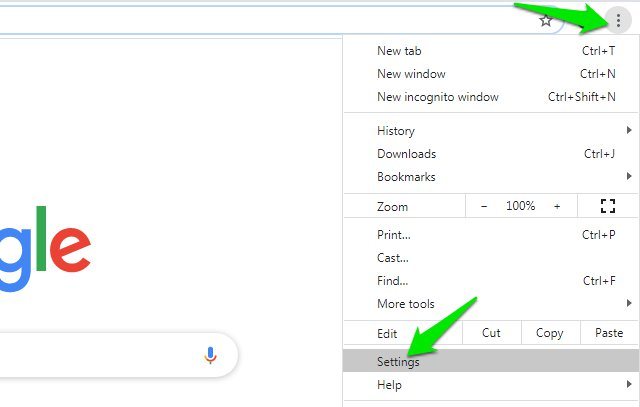
Click on the three vertical dots menu at the top-right corner and select “Settings” from it.
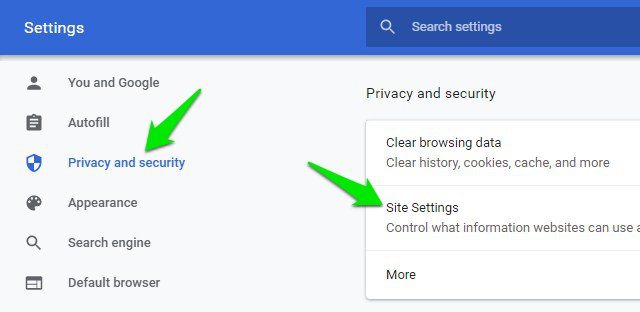
Now click on “Privacy and security” in the left panel and then click on the “Site Settings” option.
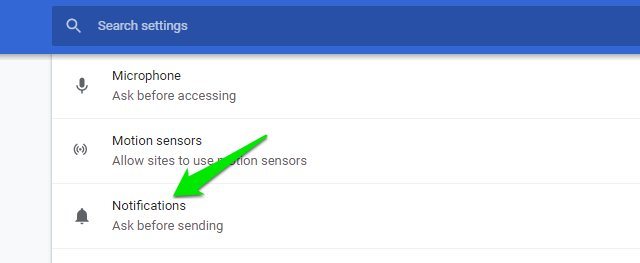
Here, scroll down and click on “Notifications”.
In the “Allow” section, you will see all the websites that are allowed to send you notifications. You can click the three vertical dots menu next to any website and select “Remove” or “Block” from it to turn off its notifications. If you choose “Remove” then the website will be able to again request to allow notifications when you will visit again, and “Block” will stop that website from asking to show notifications in the future.

You can follow the above process to remove all unwanted websites from the “Allow” list. If you don’t want websites to ask for notifications in the future, then you can turn off the toggle button next to “Notifications” at the top.

The process is quite similar on Chrome for Android as well, just follow the below instructions:
Tap on the three vertical dots menu at the top-right corner and select “Settings” from it.
Here click on the “Notifications” option.
Now scroll down to the “Sites” section and you will see all the websites that are allowed to send notifications here. Simply tap on the toggle button next to each website to disable notifications for it.

If you want to prevent websites from asking for notifications in the future, then tap on “Additional settings in the app” option and turn off the toggle next to “Notifications”.
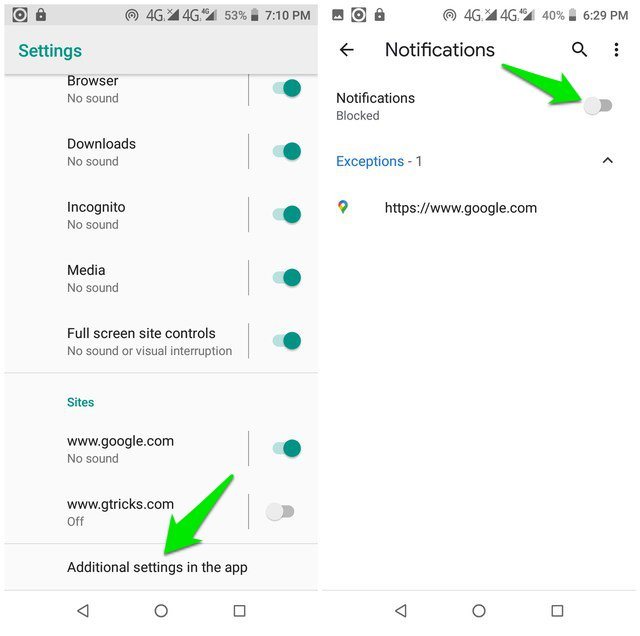
These instructions should be enough to turn off notifications in Google Chrome on both your PC and smartphone. Although I will recommend you to not disable notification requests for the future as there are many websites on which it’s important to enable notifications, such as your email provider. If you have any further questions, let us know in the comments below.
The post How To Turn Off Notifications in Google Chrome (Desktop and Android) appeared first on Gtricks.


