Secure Your Google Account By Managing Apps And Device Access

We usually don’t resist to give access to our Google account data to any app when it’s mandatory to use the app. However, it’s a great security risk that most people overlook. An App can not only ask access to view your data in your Google account, but they can also ask to modify it. Therefore, any untrusted app developer can use that access against you to control your account.

The worst part is that even if you stop using the app/service or completely delete it, the app still holds the access you gave it before. As a writer, I need to test many apps and online services to recommend to readers. And many of them ask for my Google account access to work. Therefore, at least once a month I go through my third-party app access to ensure no unnecessary access has been given.

If you want to secure your Google account, then you must ensure that you only give access to trusted apps, and no unnecessary access is given. Today, I will show you how to manage both Apps and device access in your Google account.

Manage Google account apps access

The third-party app access can be managed from the Google account settings. Here’s how:

While using any of the Google services, click on your account portrait at the top-right corner and select “Google Account” from it.
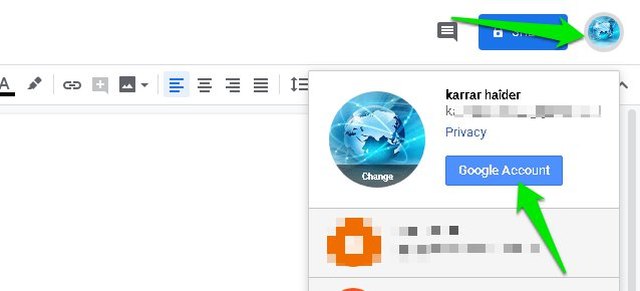
Access Google Account

Here click on the “Security” option in the left panel.
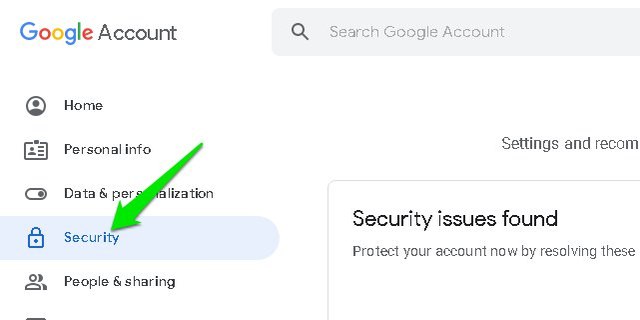
Security section

Scroll down until you reach “Third-party apps with account access” section and click on the “Manage third-party access” button at the bottom.

Manage apps access

There will be two sections here. In the first section, you’ll see all the apps that have some kind of access to your account and can make any modifications. The second section lists all the apps and websites where you used your Google account to sign in without providing any account access. Usually, they can view your email, and profile details.

You can click on an app to view the access it has to your Google account. Unfortunately, if you don’t like specific access, you can’t individually remove it. You’ll have to fully remove access of the app to your Google Account. To do so, click on the “Remove Access” button at the top-right corner and confirm the prompt to remove the access.

Remove app access

Repeat this process until you get rid of all the apps that you don’t use anymore or don’t trust them with the access they have.

Manage Google account device access

Along with managing third-party app access, it is also important to ensure you are not logged in to a device you don’t have access to anymore. The device access section in your Google account shows all the devices that you are currently logged in. Here you can see if there is a device that you lost access to still has access or not. You can even see if your account is being accessed on another device without your consent (like, if it has been hacked). Here’s how:

Go to the same “Security” section we went above and click on “Manage devices” button in the “Your devices” section.

Manage Device Access

Here you will see all the devices your Google account is logged in on when it was last active. You can even see it’s current location (if possible).
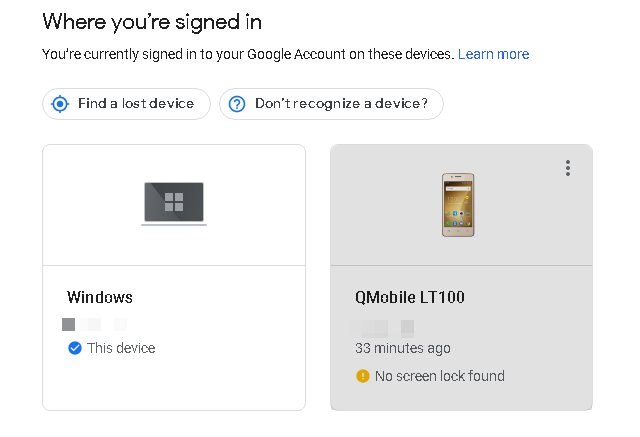
signed in devices

If you want to sign out of a device, just click on the three-dot menu at the top-right corner of it and select “Sign out”.

Sign out from a device

Ending thoughts

Security of your Google account is of utmost importance and there are many ways to secure your Google account, such as enabling 2FA. However, keeping track of apps access is usually overlooked, and today many apps ask for your account access to work. Therefore, it’s crucial to go through apps that can access your account data from time to time and ensure no untrusted app has access to your account.

The post Secure Your Google Account By Managing Apps And Device Access appeared first on Gtricks.


via Gtricks https://ift.tt/2p3kpu5

[Tip] How to Select and Delete All Chat Messages in Bulk in WhatsApp

https://ift.tt/eA8V8J Recently an AskVG reader contacted me and asked following question regarding famous Instant Messenger (chat) app WhatsApp for smartphones: Hi. I'm...

Read the full article at AskVG.com

via AskVG https://ift.tt/2Olk1BT

[Fix] Google Chrome Crashes With “Aw, Snap!” Error on Startup or Opening Websites

https://ift.tt/eA8V8J This tutorial will help you if Google Chrome web browser crashes on start or opening websites. It'll also help if Google...

Read the full article at AskVG.com

via AskVG https://ift.tt/2ngQPkx

Windows 10X FAQ: Everything You Need or Want to Know

https://ift.tt/eA8V8J Microsoft just announced about Windows 10X, a new version or edition of Windows 10 operating system. Many people are having doubts...

Read the full article at AskVG.com

via AskVG https://ift.tt/2oGyKNa

Chrome has a lot of verity in terms of extensions which we are enjoying for a long and every day we get to know about something new. We have small useful extensions and many more. Did you ever notice the mouse cursor that hasn’t changed? Do you want to know what really chrome has for this purpose? Chrome now has extensions which can replace your mouse cursor with amazing and interesting cursors, you can add your own cursors too.

Today I will talk about different Chrome extensions which can replace your mouse cursor with anything you want.

Cute Cursors

This chrome extension has gone viral because of these cute cursors which this extension offers, although the extension offers few extension this is worth adding, you get Pink theme by enabling this feature. There are four cursors which are Pink cursor, lipstick, Rose, and Pony. Each of it has its own charm and own way of working e.g. when you are pointing to some link this pink cursor will change to Lipstick. Enjoy browsing through the internet with these cute cursors.

This has really cute cursor and very easy to enable but may not work with an old version of Chrome.

Custom cursor 

After adding this you have access to over 200 cursors that are available in this chrome extension, by clicking the extension you get a collection of cursors which includes Cartoons, Color, Starter, Movies, etc. where you can select your favorite cursor. There is this button “more cursor” by clicking it redirect to their website where you find a more useful cursor and some social media cursors.

You can now create your own cursor by clicking button “upload cursor” and select your picture or any icon you want and Boom you go this cursor now.

 Custom cursors

This extension has the almost the same features as the above one but the competitive advantage Is that has more cursors plus it has different color combination in one cursor just like a rainbow so you enjoy moving a rainbow cursor over chrome. Not just Rainbow but Halloween, hue, balloon, stripe, etc.  Plus this has different animal cursors like kangaroo, cat, pug, etc.

This has some premium features where you can find more cursors on this extension and you can make your own cursor from your storage Just upload the picture.

  Cursor Cat

It can be a funny and cute cursor cat which can also be your pet where you enjoy cursor cat replaced with your traditional mouse pointer. It has few different cursor cats where you can select and it will be replaced this is a very simple one, when enabled you will find about 10 cat shapes and you will select one. The cats which are available are Tabby, Punky and Maneki Neko.

This is an animated cursor the shapes will change when you move your cursor around. This is very easy and simple to use and no premium cursors.

Cursor Sparkles

The only extension which produce sparkles when enabled this is also a very simple one to use. You are offered few different kinds of sparkles which you will select and it will be caught up by your mouse cursor, the mouse cursor will start producing different sparkles and the extra features is that when it is moved a pet cat will approach the curser to the area where the mouse cursor is stopped.

You can adjust the speed and number of sparkles by from the top.

Conclusion 

These are the best among all of them are pretty cool, the customs cursor is my personal favorite, I personally use it. All these extensions have their own limitations and very few have the premium features in it the rest are free to use. You can enjoy the sparkles and your pet cats moving around the browser which won’t let you get bored while browsing. So let us know in the comment section what do you feel about these extensions.

The post appeared first on Gtricks.


via Gtricks https://ift.tt/2mYIPnZ

[Tip] How to Hide Bookmarks Bar on New Tab Page in Google Chrome

https://ift.tt/eA8V8J This tutorial will allow you to always hide or disable bookmarks bar on New Tab page and all other pages in...

Read the full article at AskVG.com

via AskVG https://ift.tt/2nmq91A

5 Best Eye Color Changer Apps for Android To Easily Change Eye Color

At times we used to have Adobe Photoshop to edit our photos with so many complications, there were different tools for different things and it was always a headache because with many complications it comes incompatibilities with devices. Now we have simple applications and simple tools for everything so we can simply have it done. For example, we have different apps to change eye color, whether you want to change it to an animal eye, flag eye or pretty much any other style.

Let’s have a look at 5 of the best eye color changing apps for Android.

1. Eye Color Studio

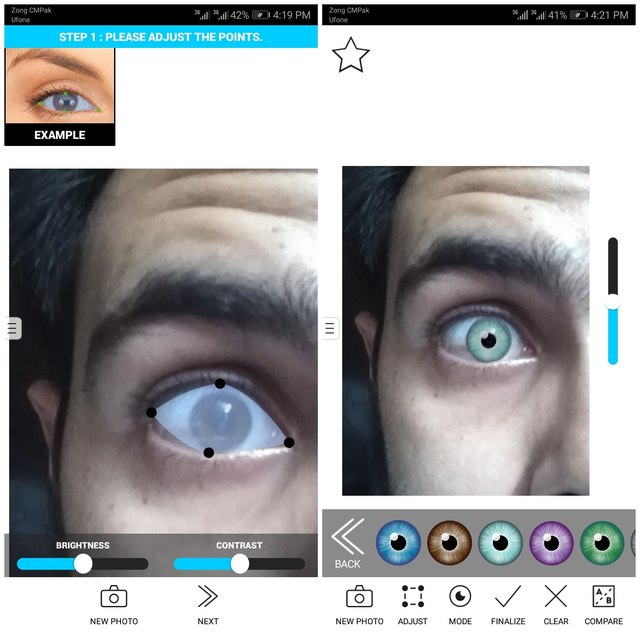
The best application if you want your eye color changed. You can edit your eye color to any color like blue, red, green, black, or brown, etc. Not enough? It has animal eyes like reptiles eyes and many more. All you have to do is upload a photo and it will automatically detect your eyes and after a few adjustments in contrast and brightness, you will select eye colors.

Eye Color Studio

You can also apply different colors to each eye, and you can link your social media to this app so you can share photos directly. The best part is that It will make it look so natural that no one can say it’s edited.

2. Eye Color Changer – Camera

This application has many unique features, after uploading your photo you will have to manually detect eyes and you will adjust the parameters and size of the eyeball very deeply so it will make the eye color look so very natural. afterwards, you will add different colors which you may like. Comes with a verity of different eye colors.

Eye Color Changer

This is very best, believe it or not, it looks pretty real when you apply the color. You can even change the size of eyes to small or big.

3. FoxEyes

This is similar to the above one, but this application offers a unique feature which is “third eye” you can select the verticle eye to color. The rest features are that you can manually select the area of eyeballs so you can change the color accurately. Different eye colors and different kinds of eyes are available in this app, select one and your eyes will look like an animal eye.

FoxEyes

4. Animal Eyes

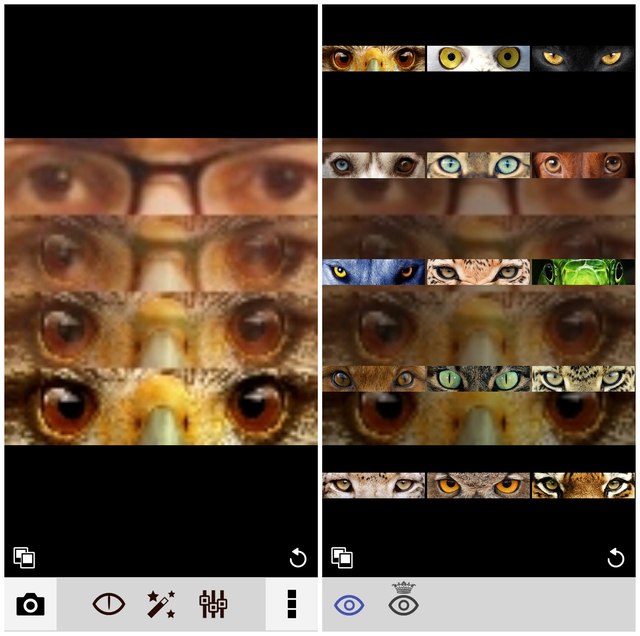
This application changes your eyes into an animal eye. You upload the photo and select your eye area as in previous apps and done. Select the animal of which eyes you want to put on and you will get the eyes. After editing it shows four layers in which your eyes are transforming into the animal eyes and save your photo.

Animal Eyes

You can also apply different filters on the photo and it could be the best photo for your Facebook cover.

5. New Eyes Editor

This application can also do a lot of wonders with your eyes. It is especially known for “Halloween eyes”. You can change your eyes into different Halloween themed eyes and not only this but warcraft, movie, black eyes, insects, etc. These are different categories and many shapes are available within each category. You are allowed to adjust the brightness and hue for the eyes.

You can also select modes where you can apply one color to each eye or separate colors for each eye.

Wrapping up

All these apps are pretty useful and entertaining when it comes to changing eye color and I must say the Eye Color Studio is the best amongst all. It offers a plethora of eye colors and its automatic eye detection make this a whole lot easier.  Got more to share? Let us know in the comment section below.

The post 5 Best Eye Color Changer Apps for Android To Easily Change Eye Color appeared first on Gtricks.


via Gtricks https://ift.tt/2mi1ZF3

TIP: How to Customize Keyboard Shortcuts in Mozilla Firefox

If you want to change, customize or disable some built-in keyboard shortcuts (also known as hotkeys) in Mozilla Firefox web browser, this ar...