Read the full article at AskVG.com

via AskVG https://ift.tt/2NGeTY7
Citing sources is one of the most important parts of academic writing. And if you are using Google Docs for your academic writing, then you must know how to cite a source in Google Docs. Google Docs actually makes it very easy to cite a source as a footnote in a document. You can search for the source right inside the document and then cite it using MLA, APA or Chicago formats with not more than a few clicks.
In this post, I am going to show you how to add citations in Google Docs in MLA, APA, and Chicago formatting.
The source to cite can be searched inside the Google Docs document, so you just need to click where you want to cite and follow the below instructions:
Click on the “Tools” menu at the top and select “Explore” from it. Alternatively, you can also press Ctrl+Alt+Shift+i keys to directly open it.

This will open a side panel where you can see topics and images related to the content of the document. You’ll also see a search bar at the top where you can add related keywords to the source or directly enter the URL of the source to find it in Google search.
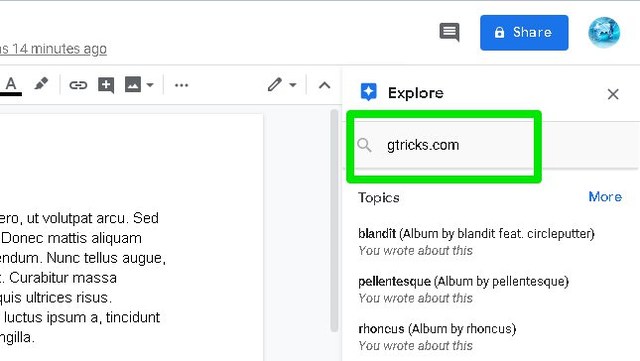
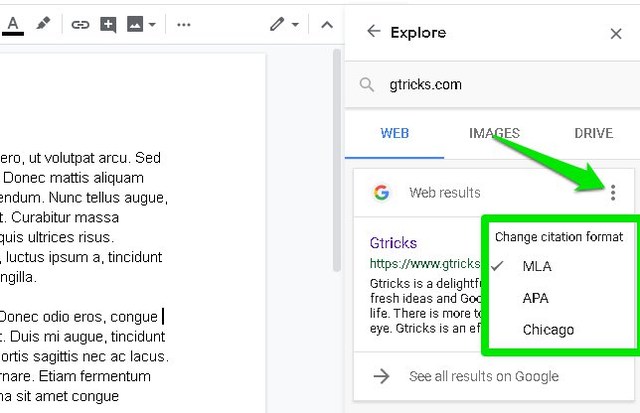
Once the source page has been found you can click on the three vertical dots menu at the top-right corner to select citation format, including MLA, APA, and Chicago.
Afterward, hover your mouse cursor over the source result and “Cite as footnote” button will appear, click on it.

This will cite that source at the bottom of the page in the footnotes section and add a number in the area where you cited. Do keep in mind that this will add the source in the footnote of the current page, it will not be at the very end of the document.
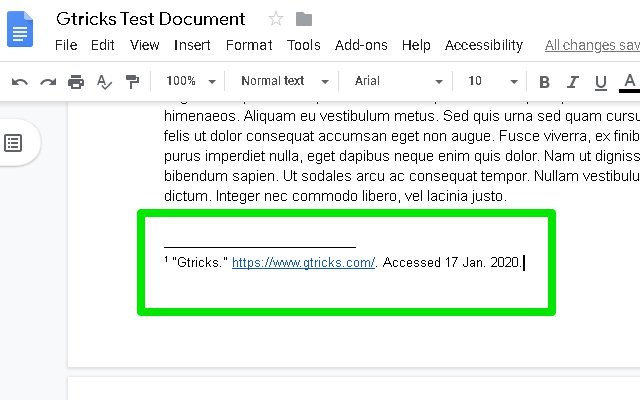
Honestly, Google Docs makes it extremely easy to cite sources in three of the most popular formats. This feature becomes more apparent when you need to cite dozen of sources and all you have to do is search and click to cite with Google Docs. Let us know in the comments if you find this feature useful.
The post How To Easily Add Citations in Google Docs (MLA, APA, and Chicago) appeared first on Gtricks.


Unlike most other document creation tools, Google Docs doesn’t come with a built-in option to apply a border to a page. There is also no third-party Google Docs add-on that provides this functionality. If you are looking to add a border in Google Docs, then you are at the mercy of clunky workarounds.
I know 2 ways to add a border in Google Docs, but of course, these workarounds are limited in functionality and a bit unintuitive as well. Although until Google adds this feature officially, these workarounds should get the job done.
To replicate a border you can use a 1×1 table and make it large enough to look like a border. Afterward, fill it with content and it will look like there is a border around the content. Here’s how to make it work:
1. From the top menu, click on “Insert” and go to “Table” and select a 1×1 table.

2. Now click and hold on the lines of the borders to drag and make it as big you need.
3. To customize, right-click inside the table and click on “Table Properties”.
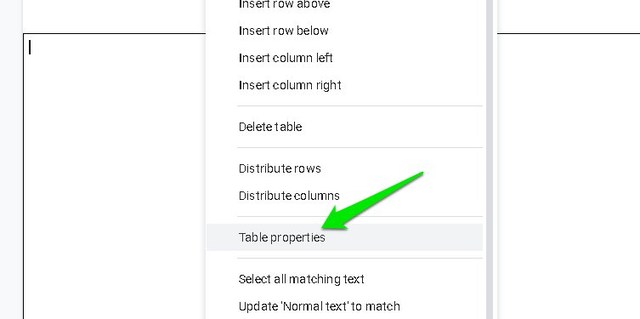
4. Here you can customize border color, line width, and background color, etc.

You can fill the table with content including text and pictures and keep increasing the size of the border as needed.

Google may not have the option to add a full-page border, but it still lets you add a border to a paragraph. You can use this same option to add a border around all of the content in your document. Here’s how:
1. Highlight the content around which you need the border (press Ctrl+A to select all).
2. Now click on the “Format” menu and then click on “Borders and shading” in the “Paragraph styles” option.

3. Here select the first four border lines next to the “Position” option and customize the rest of the options as you need and then click “Apply”.

This will add the customized border around all the selected content. To customize the border, you will need to go to the same “Borders and shading” option again while the content is highlighted.

The first method is definitely more intuitive and it also closes the border when you move to the next page; which makes it look clean. There are some other ways as well, but they are very limited. Such as the drawing tool table, but it is very hard to edit and adding more content is a headache as well. Let us know in the comments if you know any other easier ways to add a border in Google Docs.
The post 2 Simple Ways To Add a Border in Google Docs appeared first on Gtricks.


