How To Find Latitude and Longitude Coordinates on Google Maps

Latitude and longitude coordinates can be used to pinpoint a location anywhere on a map. Although we can easily pinpoint and share a location on our map app, but latitude and longitude coordinates are still important in many scenarios. For example, if you are not sharing a location from a map app to another or maybe you need to physically provide coordinates to a location, then you can do so with latitude and longitude coordinates.

Thankfully, if you need to find exact latitude and longitude coordinates of a location, then Google Maps can easily provide them. Today, I will show you how to find latitude and longitude coordinates of any location on Google Maps desktop and Android app.

Find latitude and longitude on Google Maps Desktop

On Google Maps desktop, you can’t find latitude and longitude on the lite version, therefore make sure there is no lightning bolt icon at the bottom which represents lite mode. Now right-click on the area of which you need to find latitude and longitude coordinates and select “What’s here?” option from the context menu.

 Google Maps What's here option

A small card at the bottom will open where you can see the latitude and longitude. You can note it down from here.
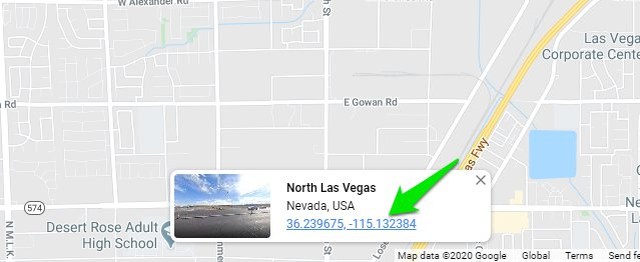
Latitude and longitude on Google Maps desktop

However, if you want to copy the values, you must click on the latitude and longitude coordinates. This will open a panel on the right side where you can see latitude and longitude in DMS and DD formats. You can highlight the values here and copy them.

Copy latitude and longitude

Find latitude and longitude on Google Maps Android app

On the Google Maps Android app, tap and hold on the location of which you want to find latitude and longitude. This will drop a pin and you will see the latitude and longitude coordinates in the search bar.

However, if you tap on the coordinates to copy them, the search bar will instead show details of a nearby known address. Therefore, you won’t be able to copy the coordinates. One workaround I have found for this problem is to tap and hold to drop the pin and then immediately tap on the search bar. If you do it fast enough, the search bar will not fill any address and instead fill latitude and longitude coordinates that you can copy.

Find latitude and longitude on Google Maps Android app

I know it will be a little difficult to copy coordinates on the app, but just try to be fast enough and it should work.

Ending thoughts

I believe it should have been easier to copy coordinates on the Android app, but I guess an actual address detail is more beneficial for mainstream users. Once you have found coordinates you need, you can enter them in the search bar of any supported maps app and it will directly open the exact location.`

The post How To Find Latitude and Longitude Coordinates on Google Maps appeared first on Gtricks.


via Gtricks https://ift.tt/37Be75N

[Windows 7 Fix] You don’t have Permission to Shut Down This Computer

https://ift.tt/eA8V8J If you are getting "You don't have permission to shut down this computer" error message while trying to shut down or...

Read the full article at AskVG.com

via AskVG https://ift.tt/2uOnKR1

[Fix] Microsoft Edge Legacy Shortcut Not Working in Windows 10 Start Menu

https://ift.tt/eA8V8J SUMMARY: If you restored old legacy Microsoft Edge browser after installing new Chromium-based Microsoft Edge in Windows 10 and now Microsoft...

Read the full article at AskVG.com

via AskVG https://ift.tt/2OR79CV

[Software Update] Mozilla Thunderbird 68.5.0 Now Available for Download

https://ift.tt/eA8V8J UPDATED on February 11, 2020: Release of Mozilla Thunderbird 68.5.0 version. Thunderbird is one of the best and most popular Desktop...

Read the full article at AskVG.com

via AskVG https://ift.tt/2nmHuDW

[Tip] Enable Opera Style “Tab Manager Menu” in Mozilla Firefox Tab Bar

https://ift.tt/eA8V8J This tutorial will help you in activating and enabling a hidden secret "Tab Manager" or "Tab Menu" feature in Mozilla Firefox...

Read the full article at AskVG.com

via AskVG https://ift.tt/2SnbXlN

[Review] Reserved Storage in Windows 10, How to Check, Manage or Disable Guide

https://ift.tt/eA8V8J In this article, we'll talk about a new feature "Reserved Storage" or "Reserved Disk Space" introduced in newer versions of Windows...

Read the full article at AskVG.com

via AskVG https://ift.tt/2H8RIBW

How To Compare Documents in Google Docs

It’s not uncommon to have different edits when multiple people are working on a document. If you want to compare two documents with similar content, then you can easily do it with a document comparison tool. However, why download a dedicated compare tool when you can easily compare documents online in Google Docs?

Google Docs has a built-in tool to compare two documents and make edits as needed. In this post, I’ll show you how you can use this feature to easily compare two documents.

Compare two documents in Google Docs

Before comparing the documents, you must make sure both the documents are in your Google Drive. If it’s not in Google Drive, then you can easily upload it to Google Drive in no time.

Now open one of the documents in Google Docs.

Click on the “Tools” menu at the top and select “Compare documents” option.

Open comparison tool

Here select the other document in the above section and provide the name of the user whose name will be used to make edits. Afterward, click on “Compare”.

Select document

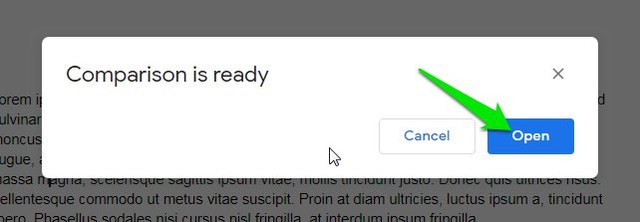
When the comparison is ready, click on “Open”.

Open comparison document

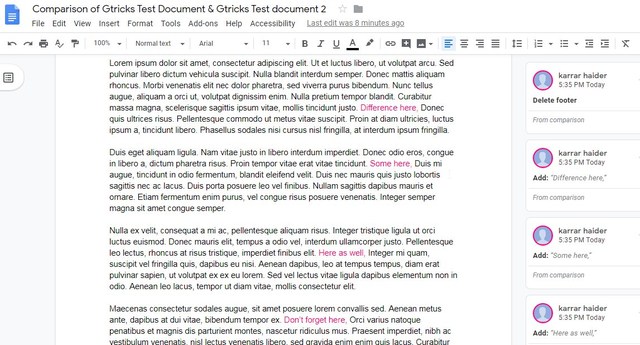
A new comparison document will be created and opened in a new tab. Here, you will be able to see all the edits in pink color and you can comment on them or accept/reject them in the right sidebar.

Compare documents in Google Docs

After making the edits, you can rename the document and it will be saved separately in your Google Docs account.

Ending words

Google Docs surely makes it very easy to compare documents online. I personally like it’s clear visuals and ability to accept suggestions and make comments quickly. Did you find this Google Docs feature useful? Do Let us know in the comments below.

The post How To Compare Documents in Google Docs appeared first on Gtricks.


via Gtricks https://ift.tt/31E4TUY

[Software Update] Vivaldi 8.0 Minor Update (5) Released, Here is What’s New and Fixed

UPDATE: Release of Minor Update (5) for Vivaldi 8.0 stable version to public. Good news for Vivaldi browser users! Vivaldi team has released...