By default, Gmail previews emails separately from the inbox. Therefore, to read emails you’ll have to constantly switch between the inbox and email previews, which can be quite cumbersome. Thankfully, Google does come with a preview feature that allows you to scroll through the inbox and preview emails at the same time.
However, Gmail Preview Pane is disabled by default, so you’ll have to enable it first before using it. In this article, I’ll show you how to enable Gmail Preview Pane feature and how to use it.
Enable Gmail Preview Pane
Gmail Preview Pane can be activated from Gmail advanced settings. Just follow the below instructions to do so:
Click on the “Gear” icon at the top right corner and select “Settings” from it.
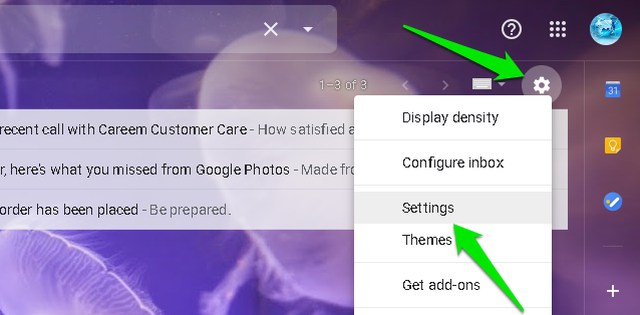
Now move to the “Advanced” tab and select “Enable” next to the “Preview Pane” option.

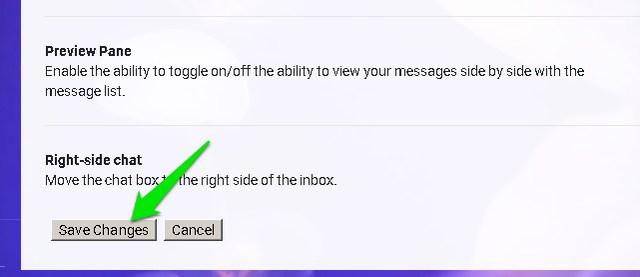
Afterward, just click on the “Save Changes” button at the bottom and Gmail will refresh to apply the changes.
Using Gmail Preview Pane
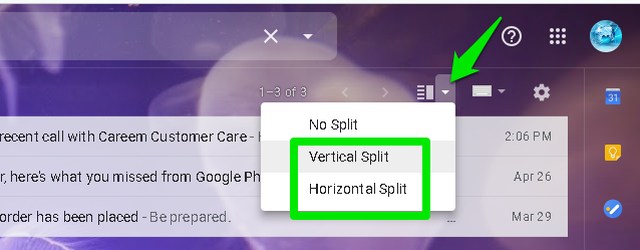
Once the Preview Pane is activated, a new button will appear in the top bar to use split pane mode.

Click on the upside-down arrow next to this button to select a split style – Vertical Split or Horizontal Split.
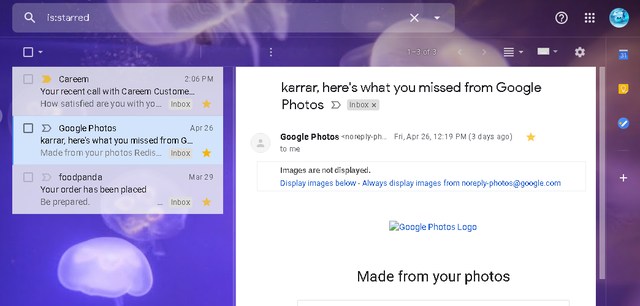
Vertical Split: In Vertical Split, the preview is shown to the right side of the messages. It’s arguably much more intuitive as all the messages and the email preview is listed side-by-side offering easy scrolling. However, it works best on wide-screen monitors where both inbox and preview could be fully viewed. On smaller screens, you’ll have to side-scroll preview to read the full email.
Horizontal Split: In Horizontal Split, the preview is shown below the messages. It does require you to scroll more than usual to read emails, but the email is opened with full width so you won’t have to side scroll.

After choosing a split style, you can use the toggle button to turn on/off the Preview Pane.
The size of the split windows can also be adjusted according to need. Just move your mouse cursor right between the middle of the split until the cursor shape changes. Afterward, click and drag to change the window size.

Ending thoughts
The preview pane feature is definitely useful if you need to deal with dozens of emails every day. It basically makes switching between emails from a three-click process to a two-click process. And of course, you can view your inbox emails while having an email open. The only downside I see is that you’ll have to scroll more while reading emails.
Let’s us know in the comments if you found Gmail Preview Pane feature useful.
The post How To Enable and Use Gmail Preview Pane appeared first on Gtricks.

via Gtricks http://bit.ly/2ZKMmoo
 MixPad Multitrack Recording Software (Free) is an easy and intuitive multitrack mixing and recording app that gives it users studio quality tools at literally the click of a mouse. This version of MixPad is free as long as the banging beats and thumping bass tracks you are throwing down are for non-commercial use. It’s the perfect app for b...


 vMix is software that allows you to create professional quality productions on your own computer without the high price tag that usually follows it. Add multiple cameras, videos, images, audio, web streams, PowerPoint, titles, virtual sets, and chroma key to your productions. vMix comes with a huge library of features and capacity enough to han...


 GPU-Z is a lightweight utility designed to give you all information about your video card and GPU. Support NVIDIA and ATI cards Displays adapter, GPU and display information Displays overclock, default clocks and 3D clocks (if available) Validation of results No installation required Support for Windows 2000 / XP / Vista (both 32 and 64 bi...


.png) CudaText is a cross-platform text editor that provides an array of plugins to support features such as code snippets, color picker, and macros. The app even comes with a simple module to help in the development of new plugins as well. Key Features include: Support for Syntax highlighting for languages C, C++, Java, JavaScript, HTML, CSS, ...
CudaText is a cross-platform text editor that provides an array of plugins to support features such as code snippets, color picker, and macros. The app even comes with a simple module to help in the development of new plugins as well. Key Features include: Support for Syntax highlighting for languages C, C++, Java, JavaScript, HTML, CSS, ...


 With Spotify, it’s easy to find the right music for every moment – on your phone, your computer, your tablet and more. There are millions of tracks on Spotify. So whether you’re working out, partying or relaxing, the right music is always at your fingertips. Choose what you want to listen to, or let Spotify surprise you. You can also browse throu...


 Mendeley provides an useful solution to document management. It has 1GB of free cloud-based storage which is also upgradable to 2GB for $5 per month, 5GB for $10, or $15 for unlimited storage. Mendeley comes with cross-platform compatibility and has a clear interface that is easy to view and navigate. Key Features include: All your resear...


